


What Riverside transcription is for
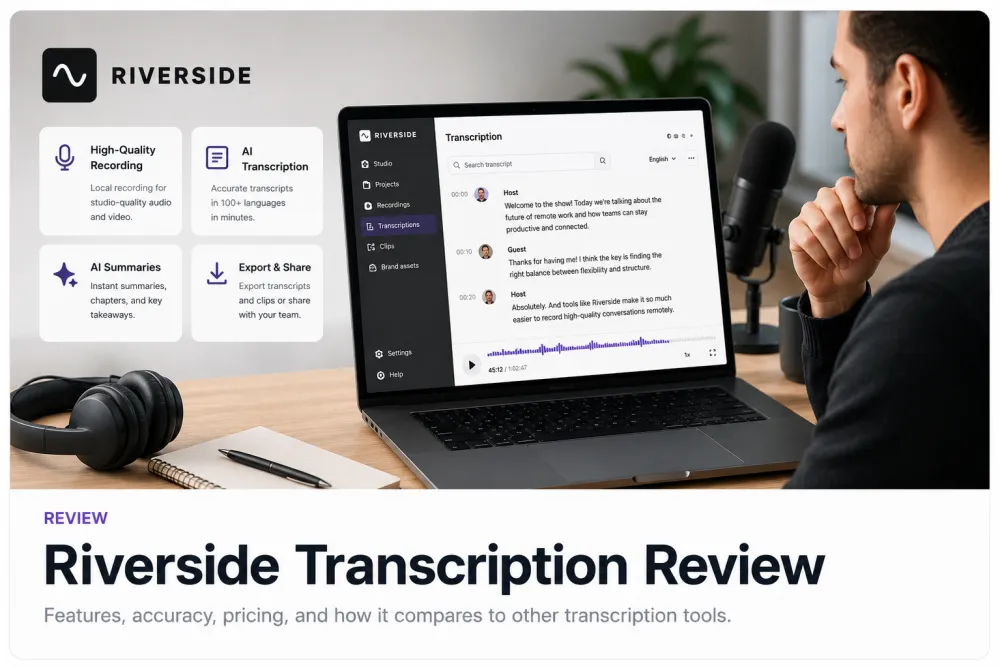
Riverside is generally positioned as a platform for recording remote interviews, podcasts, and video calls at higher local quality, then editing and repurposing that footage — with transcription bundled into that production workflow. In broad terms, its transcript feature is designed to caption and repurpose media you captured inside Riverside, rather than to be a standalone transcript editor for files that live somewhere else.
That framing matters. If your work starts and ends inside a recording studio — you record the guest in the tool, edit the video, and want captions on the way out — a bundled transcript is convenient. If your work starts with a file you already have (a Zoom export, a phone memo, an uploaded MP3, a client’s video), the question becomes whether the platform transcribes what you bring in as cleanly as it transcribes what it recorded.
What to evaluate in any transcription tool
Before comparing brands, fix your criteria — the same checklist applies to Riverside, to TranscribeThis, and to anything else. Score each tool on how it handles your real recording, not the demo file. The table below lists the criteria that decide the outcome, with TranscribeThis’s verified specifics as one concrete, honest data point; the Riverside column points you to the vendor because those specifics change and we will not guess them.
| Criterion | TranscribeThis (verified) | Riverside (check current page) |
|---|---|---|
| Recording source | Upload files or record in-browser (account); paste YouTube (guest), plus Drive/Dropbox when signed in | Primarily records inside the platform — confirm how it handles files you import from elsewhere |
| Free tier / trial | Guest: first 5 min, files ≤ 50 MB. Free account: 3/day, first 5 min each, 150 MB storage, preview export | Confirm free vs trial vs paid transcript minutes on Riverside’s pricing page |
| Speaker labels | Diarization on Standard & Premium (not free) | Check whether speaker separation is included and on which plan |
| Timestamps | Word-level for uploads/recordings; segment-level for YouTube (caption-based) | Check timestamp granularity and whether captions sync to its editor |
| Exports | TXT, DOCX, PDF, SRT, VTT (full export paid; free = preview) | Check export formats and whether transcript export is gated by plan |
| Cost model | Free preview + paid plans (Standard up to 2 GB/5 h, Premium up to 5 GB/8 h per file, 10 seats) | Check whether transcription is billed within the recording plan or separately |
| Privacy / retention | TLS in transit; configurable retention; guest uploads auto-deleted after 7 days; no-training terms with processing partners | Check Riverside’s retention, data-use, and where recordings are stored |
Transcript accuracy and speakers
No transcription tool has a single fixed accuracy number — it depends on the recording, so test rather than trust a headline. Riverside’s local, per-participant recording can help, because separate clean tracks make speech easier to recognise and speakers easier to tell apart than one muddy mixed file. But that advantage only applies to audio it recorded; a compressed file you import is subject to the same limits as everywhere else.
To evaluate accuracy honestly, run the same real recording through each tool and compare the output. Do not measure the demo clip.
- Pick one recording that reflects your hardest normal case — crosstalk, an accent, or a phone-quality track.
- Check proper nouns, product names, numbers, and dates — these are what any model gets wrong, and what causes real damage downstream.
- Check speaker turns where two people talk over each other — overlap is the hardest case for every system.
- Confirm whether speaker labels are included on the plan you would actually buy, not just the top tier.
Illustrative example. A two-host podcast recorded on separate tracks usually diarizes well; the same episode downloaded as a single stereo MP3 and re-uploaded elsewhere may merge the hosts. The lesson is that the recording pipeline, not the brand name, sets the ceiling on speaker accuracy.
Editing, search, timestamps, and exports
A transcript is only useful if you can correct it, search it, and get it out in the format you need. Evaluate three things: how you fix errors, how timestamps link back to the audio, and which export formats are available on your plan.
- Editing — can you correct text against playback, rename speakers, and fix mis-heard terms without exporting first?
- Timestamps — word-level lets you click a word to hear it; segment-level (common for caption-derived transcripts) is coarser.
- Search — can you jump to a phrase across a long recording?
- Exports — which of TXT, DOCX, PDF, SRT, VTT you get, and whether transcript export is behind the recording plan.
Riverside for YouTube and video
Riverside is generally used by creators who record video and want to repurpose it — clips, captions, and show notes — so transcription tends to sit alongside video editing rather than as a separate step. If your goal is burned-in or uploaded captions for a video you produced in the tool, that integrated path is the point of the platform.
If instead you have a finished video file (or a YouTube URL) and just want the words out, a dedicated transcript tool is often the shorter path: you get an editable transcript and caption files without opening a video editor. For YouTube specifically, remember that caption-derived transcripts are segment-level rather than word-level. Confirm on Riverside’s current page exactly how it ingests external video and YouTube links before assuming it fits that job.
Riverside vs a dedicated transcript editor
Choose Riverside if your workflow lives inside its studio; choose a dedicated transcript tool if you record elsewhere or only need the words. The two are honestly different products, and neither replaces the other.
Riverside makes sense when you record remote guests in the platform, edit the footage there, and want transcription and captions as part of that production. A dedicated transcript editor like TranscribeThis makes sense when your recordings already exist — a Zoom or Teams export, a voice memo, a client’s MP4, an interview from another app — and you want to transcribe, review, and export without adopting a recording studio you do not need.
- You record in Riverside and want captions on the way out → the bundled transcript is convenient.
- You already have the file and only need a transcript → a post-recording tool is usually faster and cheaper for that one job.
- You need a certified or verbatim legal/medical transcript → that is a human service; neither AI tool replaces it.
You can test the post-recording path on your own audio using the uploader at the top of this page: the first 5 minutes are free with no account, so you can judge accuracy on a real file before committing to any subscription.
Best alternatives by workflow
The best alternative depends on where your recording comes from and what you need out of it — pick by criteria, not by a leaderboard. Match the tool to the job rather than chasing a single "best" label.
| If you… | Look for a tool that… |
|---|---|
| Already have files (Zoom, phone, MP4) | Is post-recording, accepts common audio/video formats, and exports TXT/DOCX/SRT |
| Record remote guests and edit video | Bundles recording, editing, and captions in one studio (Riverside’s core case — check its page) |
| Need speaker-separated interviews | Includes diarization on a plan you can afford, not only the top tier |
| Publish video captions | Exports reviewable SRT/VTT and lets you correct against playback first |
| Need a certified/verbatim record | Is a professional human transcription service, not an AI draft tool |
Frequently Asked Questions
Does Riverside have transcription?
Riverside is generally known as a remote recording and post-production platform that also transcribes recordings made in it. For exactly which plans include transcription, how many minutes, and which languages, check Riverside’s current pricing and features page — those specifics change and are not published here as fact.
How does riverside.fm transcription work?
In broad terms, it transcribes media captured inside the platform as part of its recording-and-editing workflow, so captions and transcripts sit alongside video editing. Confirm how it handles files you import from elsewhere, and the export formats, on Riverside’s own page before relying on it for imported audio.
Can Riverside transcribe a file I recorded somewhere else?
That is the key thing to verify. Platforms built around in-studio recording do not always transcribe imported files as cleanly. If your recordings already exist, a post-recording tool is often the shorter path — you can test the first 5 minutes free using the uploader above.
Is Riverside good for turning audio to text?
It can work well for audio you record inside Riverside, where separate clean tracks help accuracy and speaker separation. For audio you already have, evaluate a dedicated transcript editor on the criteria that matter: upload support, timestamps, speaker labels, exports, and cost.
Riverside vs a dedicated transcription tool — which should I use?
Use Riverside if your workflow lives inside its recording studio and you want captions on produced video. Use a dedicated transcript tool if you record elsewhere or only need the words out. They are different products and neither replaces the other.
How do I evaluate transcription accuracy fairly?
Run the same real recording — your hardest normal case, not a demo — through each tool and compare. Check proper nouns, numbers, dates, and overlapping speech. No tool has a single fixed accuracy percentage; it depends on the recording.
Does Riverside export SRT or VTT captions?
Caption export availability and formats vary by plan and change over time, so confirm on Riverside’s current page. In general, remember that AI-generated SRT/VTT are reviewable caption drafts, not finished or accessibility-certified subtitles.
Is TranscribeThis a replacement for Riverside?
No — it is a replacement for the transcription step, not the recording studio. TranscribeThis is a post-recording AI transcript tool: bring a file you already have (or a YouTube link), get an editable transcript with timestamps, and export TXT/DOCX/PDF/SRT/VTT. It is not a recording studio: it does not capture separate local tracks for remote guests or edit video.
Related resources
Reviewed by the TranscribeThis product team · Last updated: July 2026