


What actually separates transcription tools
| Speaker handling | Whether turns are labelled and how well overlap is separated |
|---|---|
| Timestamps | Word-level (clickable) vs segment-level vs none |
| Inputs | Which audio and video formats, plus link imports, are accepted |
| Review workflow | Playback synced to text, search, and inline editing |
| Exports | TXT, DOCX, PDF, SRT, VTT — and whether export is gated |
| Privacy & retention | Encryption in transit, retention control, training terms |
| Cost model | Free preview vs capped minutes vs per-hour vs subscription |
Quick recommendations by use case
The "best" audio transcription software depends on what you record, so match the tool to the job rather than a headline ranking. The criteria below matter more than any brand name, and every one of them is testable on a single real file before you commit.
| If you transcribe… | Prioritise these criteria |
|---|---|
| Interviews | Accurate speaker labels, word-level timestamps, easy speaker renaming, quote search |
| Meetings | Multi-speaker separation, summaries and action points, exports your team can edit |
| Podcasts | Clean multi-speaker transcript, SRT/VTT caption drafts, long-file support |
| Lectures | Long single-speaker accuracy, timestamps for review, DOCX/PDF export |
| Voice notes | Fast turnaround on short clips, mobile-friendly formats (M4A), low friction |
What to evaluate on real audio
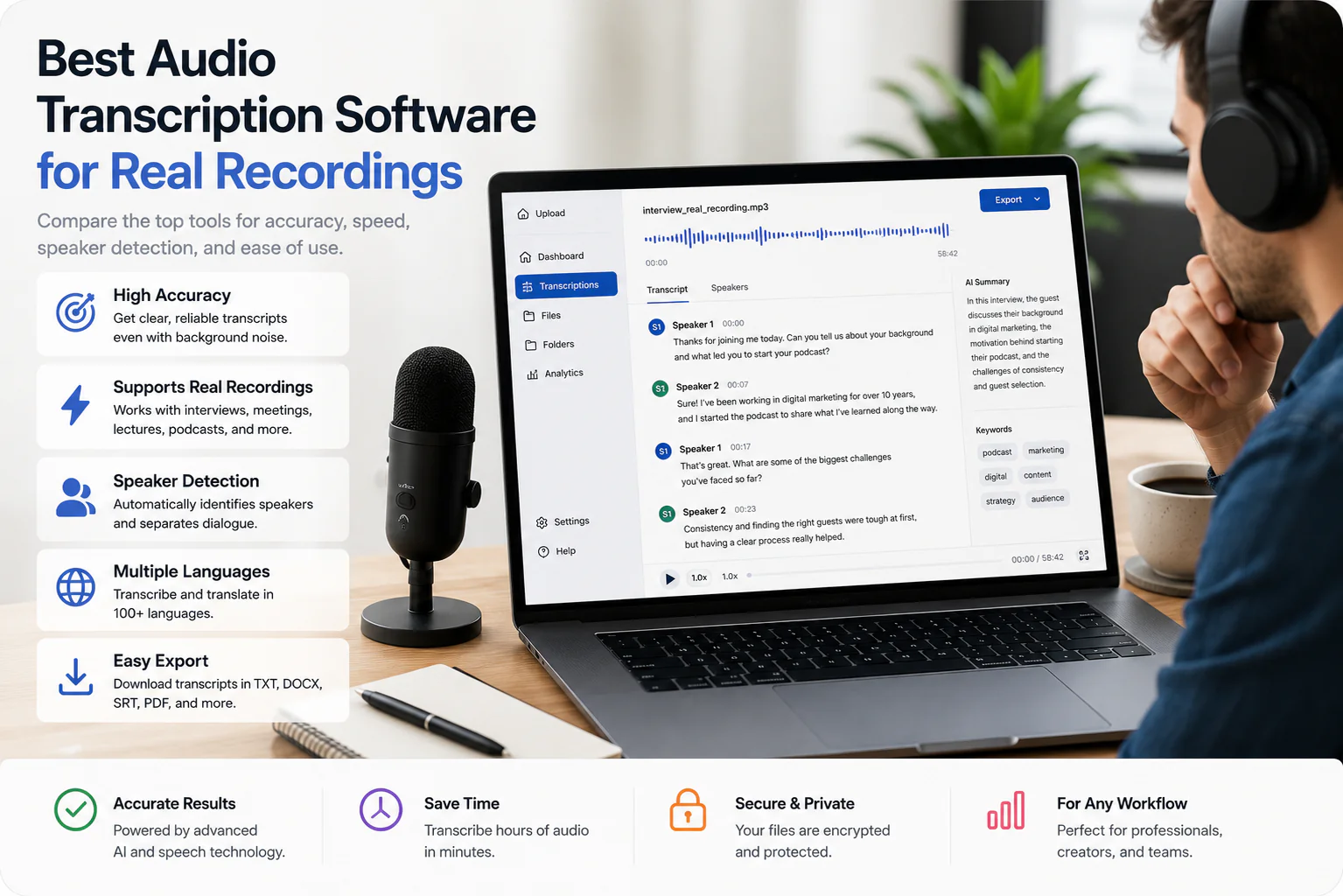
Evaluate transcription software on the things that decide whether a transcript is usable, not on a single accuracy figure. Seven criteria cover almost every real difference between tools.
- Speaker handling — does the tool label who spoke, and can you rename and correct speakers? Diarization quality shows up most on crosstalk.
- Timestamps — word-level timestamps let you click a word to hear it; segment-level (common for caption-based imports) is coarser; some tools give none.
- Inputs — which audio formats and video files it accepts, and whether it imports from a link (YouTube, Drive, Dropbox) instead of only uploads.
- Review workflow — playback synced to the text, search across the transcript, and inline editing make correction fast; without them you re-listen to everything.
- Exports — TXT, DOCX, PDF, SRT, VTT, and whether full export is behind a paywall or available on the free tier as a preview only.
- Privacy and retention — encryption in transit, how long files are kept, whether you can delete them, and whether your audio trains anyone’s model.
- Cost model — free preview vs capped free minutes vs per-hour pricing vs subscription; the cheapest sticker can be the most expensive per usable hour.
How to test a transcription tool (methodology)
The fastest way to choose is to run the same real recording through each tool and compare the output — a method you can apply yourself in under an hour. Do not rely on marketing accuracy numbers; measure on your own audio.
- Pick one representative file — ideally a hard one: two or more speakers, some crosstalk, and any accents or jargon you actually deal with.
- Transcribe the same file in each tool at its free or trial tier so you compare like for like.
- Read the first two minutes against the audio and count real errors: wrong words, mis-heard names, mangled numbers, missed speaker changes.
- Check the timestamps — click a word or line and confirm it jumps to the right moment in the recording.
- Test speaker labels — see whether turns are split correctly and whether you can rename speakers quickly.
- Export the result and open it where it needs to go (a doc, a video editor, your notes) to confirm the format is usable, not just downloadable.
- Note the friction: account required, export gated, file-length caps, and how long processing took.
Comparison criteria (fill in from each vendor)
Use this criteria table as a scorecard: the TranscribeThis column lists verified specifics, and you fill the competitor column from each vendor’s current page rather than trusting a number quoted second-hand. Pricing, limits, and features change often, so a criteria-only table stays honest.
| Criterion | TranscribeThis (verified) | Other tools |
|---|---|---|
| Processing model | Post-recording: file processed after upload, not live | Check the vendor’s current page |
| Free (no account) | First 5 min, files up to 50 MB, preview export | Check the vendor’s current page |
| Speaker labels | Yes on Standard/Premium (diarization); rename speakers | Check the vendor’s current page |
| Timestamps | Word-level for uploads/recordings; segment-level for YouTube | Check the vendor’s current page |
| Formats in | MP3, WAV, M4A, AAC, FLAC, OGG, Opus, WebM + video audio | Check the vendor’s current page |
| Exports | TXT, DOCX, PDF, SRT, VTT (full export paid) | Check the vendor’s current page |
| Long files | Up to 2 GB / 5 h (Standard), 5 GB / 8 h (Premium) | Check the vendor’s current page |
| Privacy | TLS in transit, configurable retention, no-training terms | Check the vendor’s current page |
Accuracy on clear speech, noise, accents, and multiple speakers
No transcription tool has a single accuracy percentage — the same engine performs very differently depending on the recording, which is why you should judge accuracy per condition, not per headline. Test each of the four conditions that break most tools.
- Clear single-speaker speech — the easy case; most modern tools do well here, so it rarely decides the choice.
- Background noise — cafes, streets, and HVAC hum degrade every engine; the gap between tools widens as noise rises.
- Accents and dialects — coverage varies a lot by language and accent; test the accents you actually record.
- Multiple speakers and overlap — crosstalk is the hardest case for any model, and where speaker labels most often go wrong.
Treat any "99% accurate" claim — ours or a competitor’s — as a best case on clean audio, not a guarantee for your file. On clear speech AI transcription can reach roughly 99%, but there is no single number that holds across noise, accents, and overlap.
Speaker labels and timestamp review
Speaker labels and clickable timestamps are what turn a wall of text into a document you can actually correct, so weight them heavily for interviews and meetings. In TranscribeThis, diarization is available on Standard and Premium: each turn is labelled and you can rename "Speaker 1" to a real name.
Word-level timestamps let you click any word to hear exactly what was said, which makes reviewing quotes and fixing overlap fast. Link-based imports are different: YouTube transcripts are segment-level because they come from the video’s captions, so expect coarser timing there than on an uploaded file.
Formats, file limits, and long recordings
Supported inputs and length caps decide whether a tool fits your recordings at all, so check them before anything else. TranscribeThis accepts common audio formats and the audio track of video files, then decodes everything to 16 kHz mono internally — which is why "lossless" formats do not add accuracy on their own.
| Tier | Per-file limit | Notes |
|---|---|---|
| Guest (no account) | First 5 min, up to 50 MB | Preview export; good for testing quality |
| Free account | First 5 min each, 3/day | 150 MB storage; preview export |
| Standard | Up to 2 GB / 5 hours | Diarization, word timestamps, full export |
| Premium | Up to 5 GB / 8 hours | Teams (10 seats), full export |
Editing, search, summaries, and exports
A transcript is only half the job — how you edit, search, summarise, and export it decides how much time the tool actually saves. TranscribeThis keeps the transcript editable, lets you search across it, and offers a fixed menu of AI actions rather than open-ended custom prompts.
- AI actions available: short and extended summaries, action points, meeting minutes, key quotes, decisions, next steps, risks, deadlines, and topic segmentation with a table of contents.
- Exports: TXT for plain text, DOCX for editable documents, PDF for a fixed copy, and SRT/VTT as reviewable caption drafts.
- A summary is not a transcript, and SRT/VTT are caption drafts to review — not finished, styled, accessibility-certified subtitles.
Privacy and retention
Privacy is a comparison criterion, not a footnote — for interviews and meetings it can outrank accuracy. Check three things on any tool: how data is protected, how long it is kept, and whether your audio is used to train models.
- In transit: TranscribeThis encrypts uploads with TLS. At-rest encryption is provider-dependent, so verify specifics with any vendor rather than assuming.
- Retention: retention is configurable (default keep-until-deleted; guest uploads are removed automatically unless saved to an account) and you can delete files yourself.
- Training: processing partners operate under no-training terms, so your content is not used to train AI models.
Recording other people may require their consent depending on where you are — check the rules for your jurisdiction before recording a call or meeting, regardless of which tool you pick.
Frequently Asked Questions
What is the best audio transcription software?
There is no single winner — the best tool depends on your recordings. Compare on speaker labels, word-level timestamps, supported formats, review and export workflow, privacy, and cost, then test one real file in each. TranscribeThis lets you transcribe the first 5 minutes free with speaker labels and timestamps so you can judge on your own audio.
How do I compare audio transcription tools fairly?
Run the same real recording — ideally one with multiple speakers and some noise — through each tool at its free or trial tier, then count real errors in the first two minutes, check the timestamps and speaker labels, and export the result to where it needs to go. Comparing on your own audio beats any published accuracy number.
What software transcribes audio to text accurately?
Modern AI tools transcribe clear, single-speaker audio very accurately — up to roughly 99% on clean recordings. Accuracy drops with background noise, strong accents, and overlapping speakers, so treat any fixed percentage as a best case and review the parts that matter against the audio.
What is the best audio to text converter for interviews?
For interviews, prioritise accurate speaker labels, word-level timestamps you can click to hear a passage, easy speaker renaming, and search for quotes. In TranscribeThis those are on Standard and Premium; test the diarization on a real two-person recording before you rely on it.
Is there free audio transcription software?
Yes, but free tiers are usually previews or capped minutes rather than unlimited plans. TranscribeThis transcribes the first 5 minutes of a file up to 50 MB with no account, and a free account adds 3 transcriptions a day. Confirm each competitor’s free-tier limits on their current page before relying on one.
What audio formats can transcription tools handle?
It varies by tool. TranscribeThis accepts MP3, WAV, M4A, AAC, FLAC, OGG, Opus, WebM, WMA, and AMR, plus the audio track of video files like MP4, MOV, MKV, and AVI. Check the supported formats and file-size limits on any tool before committing to it.
Can transcription software tell speakers apart?
Some can, through speaker diarization, and some cannot — it is a key comparison point. In TranscribeThis, speaker labels are available on the Standard and Premium plans, and overlap remains the hardest case for any model, so review speaker turns where people talk over each other.
Should I use AI transcription or a human service?
AI transcription gives you a complete draft in minutes that you review — fast and consistent for meetings, interviews, lectures, and voice notes. When a transcript must be certified or verbatim for a court or medical record, a professional human service is a different product and the right tool for that job.
How do transcription tools handle privacy?
It differs by vendor, so verify it. TranscribeThis encrypts uploads in transit (TLS), keeps retention configurable with delete-anytime control, and its processing partners operate under no-training terms. Check each tool’s retention and training policy, and confirm consent rules for recording others in your jurisdiction.
Related resources
Reviewed by the TranscribeThis product team · Last updated: July 2026