


At a glance
| Where it lives | Premiere Pro's Text panel — Text-Based Editing / Speech to Text (menu names vary by version) |
|---|---|
| What you get | A sequence-linked transcript you can edit and turn into captions |
| Best for | Editors already cutting the video inside Premiere Pro |
| Weaker for | A quick standalone transcript, or teams without a Creative Cloud seat |
| External alternative | Upload the video to TranscribeThis for a transcript + SRT/VTT — first 5 minutes free, no account |
| Formats out (external) | TXT, DOCX, PDF, SRT, VTT |
Quick steps
In recent versions, transcribing inside Premiere Pro follows a consistent shape: open the Text panel, transcribe the sequence, correct the text, and generate captions from that transcript. The exact menu labels and button positions differ between releases, so confirm each control against Adobe's current documentation for your version.
- Open the Text panel and switch to the Transcript tab (Text-Based Editing / Speech to Text).
- Transcribe the active sequence, choosing the spoken language and, if offered, speaker detection.
- Read the transcript against the audio and correct names, numbers, and misheard words.
- Create captions from the transcript, then style and position them.
- Export the transcript as text or SRT, or export the video with burned-in or sidecar captions.
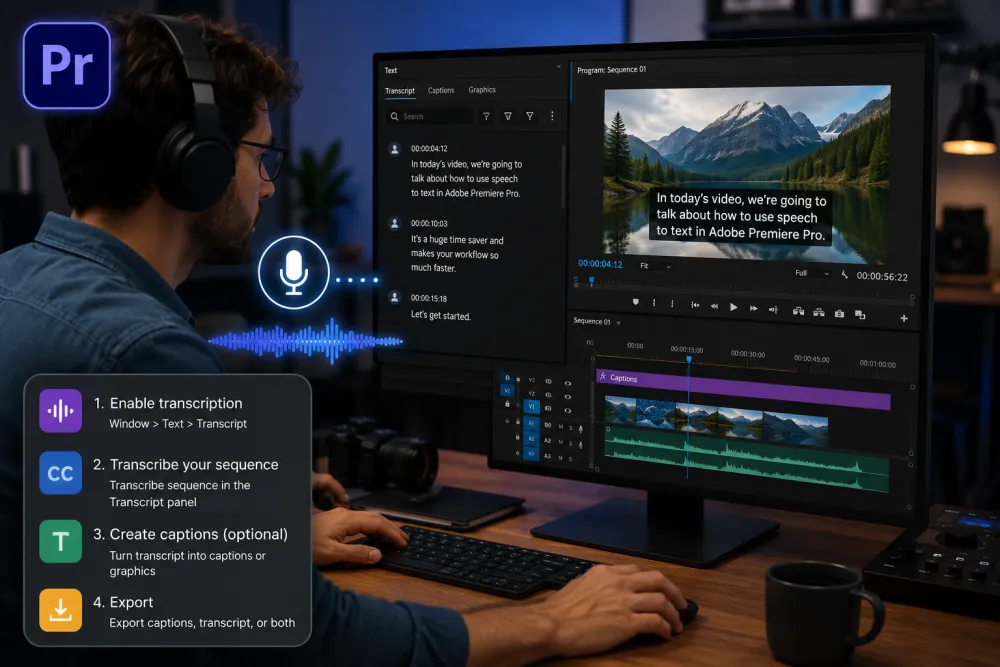
Step 1 — Open Text-Based Editing / Speech to Text
Transcription lives in Premiere Pro's Text panel. In recent versions you open it from the Window menu (Window > Text) or by choosing a Captions and Graphics workspace, then switch to the Transcript tab. Some releases label the feature "Text-Based Editing" and others surface a "Speech to Text" action — treat these as the same workflow.
- Make sure a sequence with audio is open and active — transcription runs against the sequence, not a raw clip in the bin.
- If the Text panel is not visible, enable it from the Window menu.
- Menu wording and workspace names vary by version; the Transcript tab is the anchor to look for.
Step 2 — Create a sequence transcript
From the Transcript tab, start the transcription and choose the language spoken in the audio. If your build offers speaker detection, enable it so the transcript is split by speaker; you can rename the detected speakers afterwards. Processing time depends on the length of the sequence.
- Pick the correct spoken language — the wrong language setting is the most common cause of a poor transcript.
- Choose which audio to analyze if prompted (mix vs. a specific track); dialogue on its own track transcribes more cleanly than a full music-and-effects mix.
- Speaker labelling, where available, is a starting guess you refine by hand.
Step 3 — Correct the transcript
A generated transcript is a draft, not a finished record. Play the sequence and read along, fixing the errors automatic speech recognition tends to make: proper nouns, product names, figures, dates, and specialist terms. Text-based editing links the words to the timeline, so selecting text highlights the matching audio — use that to check anything you plan to keep or caption.
- Correct names and numbers first — those errors cause the most downstream damage.
- Fix speaker turns where two people talk over each other; overlap is the hardest case for any model.
- Merge or relabel speakers if detection split one person into several.
Create and style captions
Once the transcript reads correctly, Premiere Pro can generate captions from it. In recent versions you create a caption track from the transcript, then use the Captions tab and Essential Graphics controls to adjust font, size, colour, background, and position. Captions become a track on the timeline that you can retime and split like other clips.
- Generating captions turns transcript lines into timed caption segments you can still edit.
- Styling controls (font, background, placement) live in the Captions tab and graphics panels; their exact layout shifts between versions.
- Keep caption lines short and split long sentences so they are readable on screen.
Export transcript, SRT, or text
Premiere Pro can export the transcript as text and captions as a sidecar file or burned into the video. Pick the export by where the text is going:
| You need | Do this in Premiere Pro |
|---|---|
| Plain transcript text | Export the transcript from the Transcript tab menu (e.g. copy or export to a text file) |
| A subtitle sidecar file (SRT) | Export captions as SRT so another platform can load them |
| Captions inside the video | Export the sequence with a caption track burned in or muxed, depending on format |
| Just a transcript, no edit | Consider an external tool instead of opening a full editing project |
Premiere Pro vs a dedicated transcription tool
Use Premiere Pro when you are already editing the video there; use a dedicated transcription tool when the transcript itself is the deliverable. The two are not competitors so much as different jobs.
| Consideration | Adobe Premiere Pro | Dedicated tool (e.g. TranscribeThis) |
|---|---|---|
| Best when | You are cutting the video in Premiere | You only need a transcript, SRT, or VTT |
| Setup | Requires Premiere Pro + a project | Upload a file in the browser, no editor |
| Output focus | Captions tied to your timeline | Editable transcript + TXT/DOCX/PDF/SRT/VTT |
| Speaker labels | Version-dependent | Diarization on paid plans |
| Cost to start | A Creative Cloud subscription | First 5 minutes free, no account |
| Not for | A one-off transcript without editing | Video editing, colour, or effects |
Illustrative example: a marketer with one recorded webinar who needs a clean transcript and an SRT file does not need to open a Premiere project — uploading the video to a dedicated tool returns both faster. An editor already assembling that webinar into a highlight reel is better served transcribing inside Premiere Pro so the captions follow the timeline.
Common errors
Most transcription problems in Premiere Pro come from setup and source audio rather than the feature itself.
| Problem | Likely cause and fix |
|---|---|
| Transcript is mostly wrong | Wrong language selected, or the tool analyzed the music/effects mix — reselect the language and the dialogue track |
| No Transcript tab or Speech to Text | Your version places it elsewhere or requires an update — check the Window/Text menu and Adobe docs for your build |
| Speakers not separated | Speaker detection off or unavailable in your version, or heavy crosstalk — enable it if offered and relabel by hand |
| Captions look wrong on export | Style or format mismatch — review the Captions tab and confirm the export format supports the caption type |
| Just need the text, editor feels heavy | Upload the video to a dedicated transcription tool for a transcript and SRT without a project |
Frequently Asked Questions
Does Adobe Premiere Pro transcribe audio?
Yes. Recent versions include speech-to-text in the Text panel: it transcribes the active sequence, and you can correct the text and generate captions from it. The exact menu names and controls change by version, so check Adobe's current documentation for your build.
Where is Speech to Text in Premiere Pro?
It lives in the Text panel, under the Transcript tab, which you open from the Window menu or a Captions workspace. Some versions call it Text-Based Editing and others Speech to Text — they refer to the same transcription workflow.
How do I export a transcript from Premiere Pro?
From the Transcript tab you can export the transcript as text, and export captions as an SRT sidecar file or burned into the exported video. The available options depend on your Premiere Pro version and sequence format.
Is Premiere Pro transcription free?
The feature is part of Premiere Pro, which needs a paid Creative Cloud subscription. If you only need a transcript or subtitle file and not the editor, a dedicated tool like TranscribeThis transcribes the first 5 minutes of a file free, with no account.
Can Premiere Pro tell speakers apart?
Some versions offer speaker detection that splits the transcript by speaker, which you then rename and correct. Availability depends on your build, and overlapping speech still needs manual cleanup.
Do I need Premiere Pro just to get a transcript?
No. If the transcript itself is what you want — not a video edit — you can upload the video to a transcription tool and get an editable transcript plus SRT/VTT without opening an editing project.
Why is my Premiere Pro transcript inaccurate?
The most common causes are the wrong spoken language selected, transcribing a full music-and-effects mix instead of the dialogue track, or noisy source audio. Fix the language and audio selection, then review names, numbers, and specialist terms by hand.
Are Premiere Pro captions accessibility-certified?
No. Generating captions from a transcript produces timed on-screen text, but it does not certify them for accessibility standards. Treat auto-generated captions as a draft that needs human review.
Related resources
Reviewed by the TranscribeThis product team · Last updated: July 2026