


What Is Video Transcription?
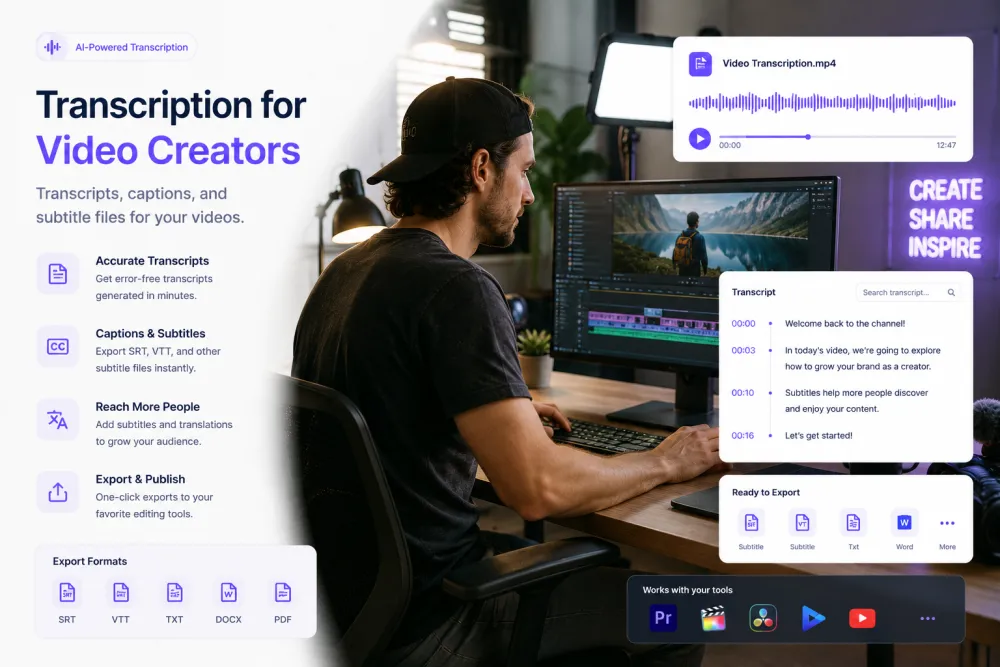
Video transcription converts the spoken content of a video file — an interview, tutorial, webinar, course lesson, or livestream replay — into text with speaker labels and word-level timestamps. Each line stays tied to a point on the video timeline, so the person editing can search the footage by word, jump to that moment, and export the same text either as a reading transcript or as a timed subtitle file.
For a creator the transcript is mostly a navigation tool. A ninety-minute interview is slow to scrub and fast to read, so the transcript is where you find the section worth keeping, and the timestamp is how you get back to it in the editor.
Video Transcription at a Glance
| Inputs | Interviews, tutorials, webinars, course lessons, video podcasts, demos, livestream replays |
|---|---|
| Video formats | MP4, MOV, MKV, WebM and 30+ audio and video formats in total |
| Timestamps | Word-level, and clicking a line plays that point in the file |
| Search | Keyword search inside a transcript and across your uploaded library |
| Speakers | Host, guest, and multiple speakers labeled automatically |
| Subtitle files | SRT and VTT export on paid plans; TXT and JSON free |
| AI output | Summary, key quotes, action points, decisions, risks, deadlines — a fixed set |
| Editing boundary | No video editing, clip generation, highlight picking, chapters, or caption styling |
| Account | Transcription works without an account; AI passes, annotation, and paid exports need one |
Search Long Footage by Word
Search the transcript for the phrase you half-remember — the objection, the punchline, the product name — and click the line to play that moment in the file. On a two-hour recording this replaces the scrubbing pass that usually happens before any editing starts. Across your account, one search finds which uploads mention a term at all.


Export SRT and VTT Subtitle Files
The same timed text exports as an SRT or VTT file you upload alongside your video wherever it is published. The file carries the text and the timings; how the captions look on screen is decided by the player or the platform, not here. SRT and VTT are paid exports — the free tier gives you TXT, JSON, and your original file back.
AI Passes for Long Recordings
A fixed catalogue of one-click passes gives you a summary of the recording plus key quotes, action points, decisions, risks, and deadlines. It is a way to see what is in ninety minutes of footage without watching it twice. It is not a highlight reel: the passes produce text, and choosing what makes the cut stays with you.

What a Creator Artifact Looks Like
An illustrative interview episode: the transcript excerpt, what a search and an editor note produced from it, and the subtitle entry exported from the same lines.
Illustrative example, not a real episode. The AI summarizes what was said rather than filling a fixed template, and the editor note is written by the creator — the product does not decide which section is worth using.
What the Transcript and Passes Give You
Depending on the recording, the transcript and the AI passes can help you locate:
Video Types Creators Bring
Anything with speech in it transcribes the same way; these are the formats creators upload most often.
Two people, one long take, and a lot of usable material buried in the middle. The transcript is how you find the middle.
Step-by-step narration where the transcript doubles as the written version, and where product names and menu items are the words worth proofreading.
Long presentations with a Q&A at the end. The Q&A is usually the part people search for later, and the part nobody remembers the timing of.
Lesson videos where subtitle files matter for learners watching in a second language or without sound.
Episodes published as both video and audio, where one transcript serves the description, the search, and the subtitle file.
Hours of footage per subject, most of it not used, all of it needing to stay findable while the edit takes shape.
Screen recordings with narration, dense with feature names and interface labels that automatic transcription gets wrong more often than plain speech.
Long unedited recordings uploaded after the fact. Transcribed after the stream ends — TranscribeThis does not transcribe live.
Where Creator Footage Comes From
Camera and editor exports
Export an MP4 or MOV from your camera or your editing timeline and upload it. A compressed export transcribes as well as the master file, and uploads faster.
Screen recorders
OBS, QuickTime, and similar tools produce MP4 or MKV files that work directly. Record the microphone on its own track where you can — it is the single biggest quality factor.
Conferencing recordings
Remote interviews recorded in Zoom, Teams, or Google Meet transcribe well because each speaker sits close to their own microphone. Upload the file the tool exports.
Phone and audio-only files
M4A, MP3, and WAV work the same as video. If you already have a separate audio mixdown, uploading it instead of the video is smaller and no less accurate.
TranscribeThis transcribes files you upload and public YouTube links you paste. It does not connect to a YouTube channel, Vimeo, or any hosting platform, does not pull videos from a channel, and does not transcribe live.
The Creator Workflow
Each step is something an editor already does; the transcript is what makes the long-footage steps quick.
- Footage
- Transcript
- Check names and terms
- Search
- Highlight
- Note for the edit
- AI passes
- Export SRT or VTT
Auto-Captions and Manual Typing vs. an Exportable Transcript
| Platform auto-captions and typing it yourself | TranscribeThis |
|---|---|
| Captions locked inside one platform's player | An SRT or VTT file you own and can upload anywhere |
| Finding a line means scrubbing the timeline | Finding a line means searching for the word |
| No usable text version of the video | A transcript you can read, quote, and export |
| Speakers merged into one undifferentiated block | Host and guest labeled separately |
| Hours of typing per long interview | Minutes to transcribe, then a proofreading pass you control |
Transcript vs. Captions vs. Subtitles
These three words get used interchangeably and mean different things. A transcript is the full spoken content of a recording as text, meant to be read. Captions are timed text shown on screen for viewers who cannot hear the audio, and they may include sound cues such as [door closes] or [music playing]. Subtitles are timed dialogue text, usually assuming the viewer can hear, and often translated into another language.
TranscribeThis produces transcript files and subtitle files. You get the text and the timings — TXT and JSON free, SRT and VTT on paid plans — and you upload that file to your player or platform, or open it in a subtitle editor first. It is not a captioning suite and not a video editor: there is no styling, no positioning, no sound-cue authoring, and no burning captions into the picture.
The neighbouring category is video production software. Editing, cutting clips, choosing highlights, writing chapters, designing caption looks, and rendering a finished file are jobs for your editor — Premiere, Resolve, Final Cut, CapCut, or whatever you already use. This sits before that step: it produces the text you search, read, and export.
Accuracy and Limitations on Video
Accuracy is not a fixed number. These are the conditions that move it on creator footage, and the checks worth doing before a subtitle file goes public:
Privacy and Unpublished Footage
Raw creator footage is often unpublished, embargoed, or covered by an agreement with a guest or a sponsor. This section is guidance, not legal advice.
Files travel over TLS and are stored encrypted. An unreleased episode or an embargoed launch video is handled the same way as anything else you upload.
Guest uploads that are not saved to an account are deleted automatically. Files in your account stay until you delete them, which is what you want when a project runs for weeks before release.
Your footage and its transcript are not training data. Nothing you upload is used to improve a model.
Client work, licensed material, guest interviews under embargo, and anything covered by an NDA may restrict third-party processing. Confirm you are allowed to upload it before you do.
Formats, Languages, and Limits
Try It With Real Footage
Upload a video and review the transcript, speaker labels, and word-level timestamps before choosing a plan. No signup for files up to 50 MB.
Related Pages
Frequently Asked Questions
Can TranscribeThis transcribe video files?
Yes. Upload an MP4, MOV, MKV, WebM, or any of 30+ formats and you get a speaker-labeled transcript with word-level timestamps, usually in about two minutes per hour of audio. No account is needed for files up to 50 MB.
Can I export SRT or VTT subtitle files?
Yes, on a paid plan. SRT and VTT are paid exports; the free tier gives you TXT, JSON, and your original file. The export contains the text and the timings, which you then upload to your player or platform.
Does it automatically create clips or short-form videos?
No. There is no clip generation and no highlight picking. The transcript and the AI passes help you find the section you want and the second it starts, but cutting it is done in your video editor.
Can it edit captions inside the video?
No. TranscribeThis produces subtitle files, not styled on-screen captions. There is no font, colour, or position control, and captions are never burned into the picture. Open the SRT or VTT in a subtitle editor or your NLE if you need that.
Does it generate chapters?
No. Chapters are not generated automatically, and neither are titles, descriptions, or social posts. What you get is the transcript, timestamps, and a fixed set of AI passes — the summary can tell you what a section covers, but you write the chapter list.
What is the difference between a transcript, captions, and subtitles?
A transcript is the full spoken content as readable text. Captions are timed on-screen text for viewers who cannot hear the audio and may include sound cues. Subtitles are timed dialogue text, often translated. This produces transcript files and subtitle files (SRT, VTT); how they appear on screen is up to your player.
Can I search inside a long video?
Yes. Search the transcript for a word and click the line to play that moment, which on a two-hour recording is much faster than scrubbing. One search also finds which of your uploads mention a term. It matches words rather than meaning.
Are the captions accurate enough to publish as-is?
Treat them as a draft that needs a proofreading pass. Guest names, brand names, and technical terms are where automatic transcription errs most, and they are the errors viewers notice. Music beds, crosstalk, and fast speech also affect the result — check names, terminology, line breaks, and reading speed before publishing.
Can it transcribe a livestream while it is running?
No. There is no live transcription and no way to connect a stream. Upload the replay after the stream ends and transcribe the recorded file.
Can it pull videos from my YouTube channel?
Not from your channel. There is no connection to a YouTube channel, Vimeo, or any hosting platform, but you can paste the link to a public YouTube video and it will be transcribed. For anything else, download or export the file yourself and upload it. There are no app integrations for sending the transcript onward — copy the text or download a file.
Can I share a transcript with an editor or collaborator?
Yes. Send a revocable read-only link, or copy the text or download a file to hand over. You can also highlight passages in colour and attach comments, which stay with the recording for whoever opens it next.
Is my unreleased footage safe to upload?
Files are encrypted in transit and at rest, guest uploads that are not saved to an account are deleted automatically, files in your account stay until you delete them or your retention setting removes them, and nothing you upload is used to train AI models. If the footage is not yours — client work, licensed material, an embargoed guest interview — check that you are permitted to process it with a third party first. This is guidance, not legal advice.
Details on encryption, retention, and how we handle your files: Privacy Policy · Terms of Service
Reviewed by the TranscribeThis Speech Recognition Team.
Last updated: July 2026