


At a glance — what to compare
| Input | Uploaded video file vs YouTube/URL link vs meeting recording |
|---|---|
| Output you need | Plain transcript, caption file (SRT/VTT), or finished styled subtitles |
| Timing | Word-level timestamps vs segment-level (caption-based) timing |
| Speakers | Whether the tool labels who spoke, and on which plan |
| Formats out | TXT/DOCX/PDF for text; SRT/VTT for captions |
| Cost model | Free preview vs capped minutes vs paid plan vs human service |
Quick recommendations by what you are transcribing
The best video transcription software depends on your source and your output. Pick by the job in front of you rather than by a single "winner", because a tool that is great for an uploaded interview is not automatically the right choice for pulling text out of a YouTube video.
- Uploaded video (interview, webinar, screen recording): use a tool that reads the audio track directly and gives word-level timestamps and speaker labels for review. TranscribeThis handles the audio inside MP4, MOV, MKV, AVI, WMV, M4V and more.
- A YouTube or public video link: a caption-based importer is fastest. In TranscribeThis, a pasted YouTube link uses the video's existing captions, so the result is segment-level rather than word-level.
- Subtitles for an edited video: you want a tool that exports SRT/VTT you can review and load into your editor — treat these as reviewable caption drafts, not finished, styled, certified subtitles.
- A legal, medical, or broadcast-certified transcript: an AI draft is the wrong final tool. Use a professional human transcription service for anything that must be verbatim or certified.
Transcript vs captions vs subtitles
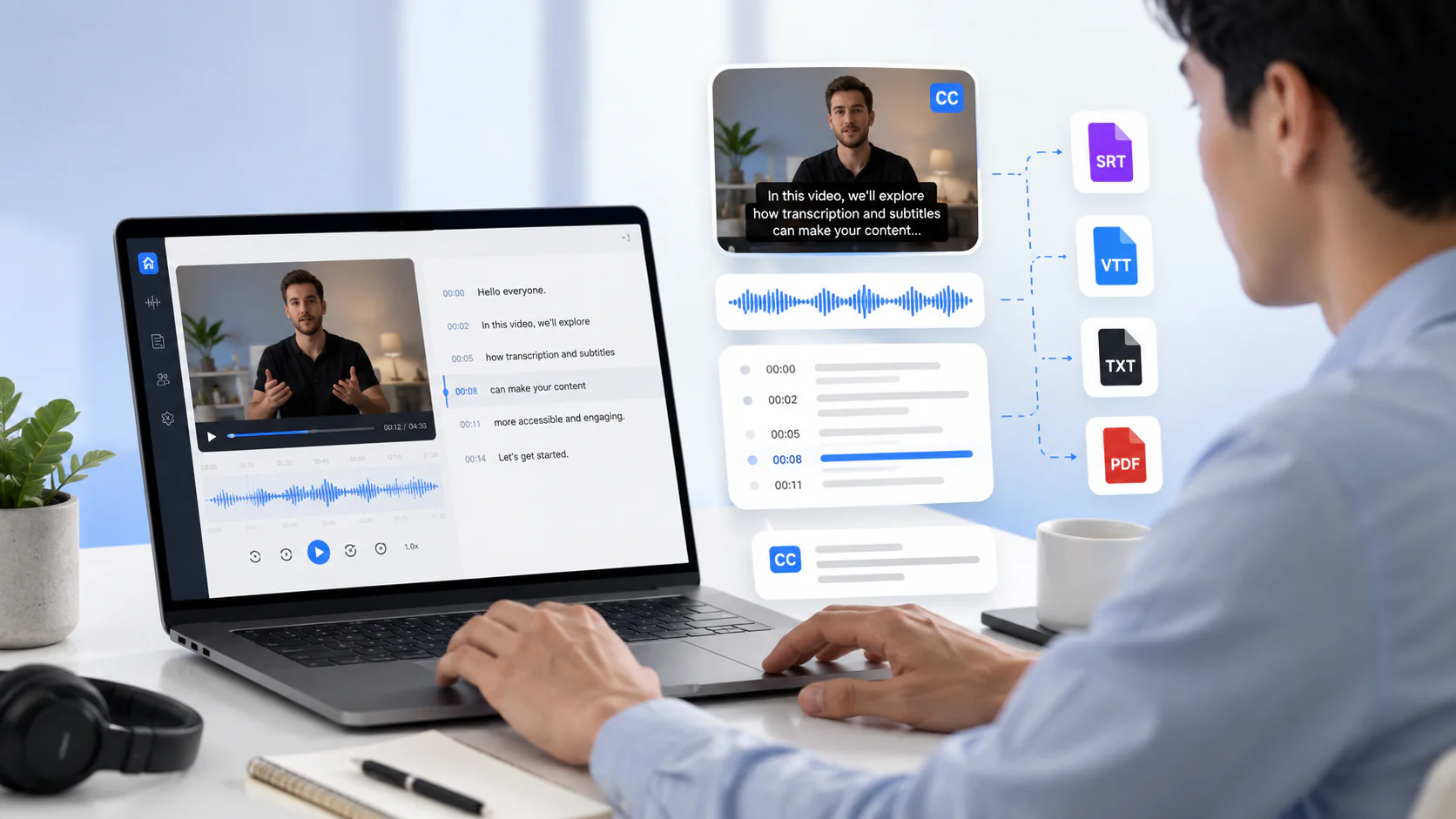
These three words are used interchangeably but describe different outputs, and choosing the wrong one wastes time. A transcript is the words as a document; a caption file is those words split into timed cues (SRT/VTT); finished subtitles are styled, positioned, and accessibility-checked cues burned into or shipped with a video.
| Output | What it is | Typical format | Where TranscribeThis fits |
|---|---|---|---|
| Transcript | The full spoken text as a readable document | TXT, DOCX, PDF | Editable draft with word-level timestamps you review, then export |
| Caption file | The text split into timed cues for a player | SRT, VTT | Exportable draft you review before loading into an editor (full export is paid) |
| Finished subtitles | Styled, positioned, line-length-checked, accessibility-verified cues | Burned-in or sidecar SRT/VTT | Not produced here — do the styling and QA in your video editor |
Uploaded files vs YouTube links
How a tool ingests your video changes the accuracy and the timing you get back. Uploading the actual file lets the tool transcribe the real audio; importing a link often means the tool reuses captions the platform already generated.
- Uploaded video: TranscribeThis decodes the audio track (everything becomes 16 kHz mono internally) and produces a fresh transcript with word-level timestamps you can click to hear.
- YouTube link: the importer uses the video's existing captions where available. That is fast and works for guests without an account, but it is caption-based, so timing is segment-level and quality depends on whatever captions the video already has.
- Google Drive and Dropbox links: available to signed-in users, and treated like an uploaded file rather than a caption import.
What to evaluate, and how to test it
The reliable way to pick video transcription software is to run one real clip through each candidate and check the same things every time. Reviews and headline accuracy numbers do not tell you how a tool handles your accents, your crosstalk, or your export needs — your own clip does.
- Take a 3–5 minute clip that is representative of your real work — including the hard parts (multiple speakers, an accent, some background noise).
- Run it through each tool and read the transcript against the video. Note where it mis-hears names, numbers, and jargon rather than trusting a percentage.
- Check the timestamps: are they word-level (click a word, hear that word) or only segment-level?
- Check speaker labels: does the tool split turns, and can you rename speakers? On which plan?
- Export SRT/VTT and open it in your editor. Confirm the cues load, and see how much cleanup line length and reading speed still need.
- Note the real cost model: is the free tier a one-off preview, capped minutes, or a reusable plan — and what triggers payment?
Comparison criteria (fill the competitor cells yourself)
Use these criteria as your columns and score each tool on your own clip. Only the TranscribeThis row below is filled with verified facts; for other vendors, check their current page, because pricing and limits change frequently and we do not restate competitor numbers we cannot verify.
| Criterion | TranscribeThis | Other tools |
|---|---|---|
| Uploaded video | Yes — audio track of MP4, MOV, MKV, AVI, WMV, M4V and more | Check the vendor's current page |
| YouTube / URL import | Yes — YouTube for guests (caption-based, segment-level) | Check the vendor's current page |
| Timestamps | Word-level for uploads/recordings; segment-level for YouTube | Check the vendor's current page |
| Speaker labels | Yes on Standard & Premium (not on the free tier) | Check the vendor's current page |
| Caption export | SRT and VTT (full export is a paid feature) | Check the vendor's current page |
| Free tier | Guest: first 5 minutes, files up to 50 MB, preview export | Free preview vs capped minutes vs trial — confirm |
| Certified/verbatim | No — AI draft for review, not certified transcription | Human services differ — check the vendor |
Transcript accuracy and speaker labels
No video transcription tool has one fixed accuracy number — it depends on the recording. Clear, single-speaker video transcribes very well; heavy accents, music beds, overlapping speech, and low-quality microphone audio need more review. Treat any "99% accurate" headline, from any vendor, as a best case on clean audio rather than a guarantee for your footage.
For multi-speaker video — interviews, panels, webinars — speaker labeling (diarization) is what turns a wall of text into a usable transcript. In TranscribeThis, diarization is available on Standard and Premium: it splits the transcript by speaker and lets you rename "Speaker 1" to real names. Overlapping speech is the hardest case for any model, so review the turns where two people talk at once.
Timestamp synchronization
Timing is where transcript tools quietly differ, and it decides how usable your captions are. Word-level timestamps let you click any word and hear exactly that moment, which makes review and caption timing precise. Segment-level timing only marks the start of a block of text, so cues are coarser.
For uploaded and recorded video, TranscribeThis produces word-level timestamps. YouTube link imports are segment-level because they come from the video's existing captions. If precise caption timing matters, upload the file rather than importing the link.
SRT/VTT export and caption review
SRT and VTT exports are reviewable caption drafts, not finished subtitles. They give you timed cues you can load into a video editor, but the styling, line breaks, reading-speed limits, and on-screen sound descriptions that make captions genuinely accessible are still a human editing step.
- Export SRT for most video editors and social platforms; export VTT for web players and HTML5 video.
- Review the draft for reading speed and line length before you ship — auto-generated cues are often too long to read comfortably.
- Full export is a paid feature in TranscribeThis; the free tier gives a preview so you can check quality first.
Supported formats and file limits
Video transcription reads the audio track, so container format matters less than length and file size. TranscribeThis accepts common video containers and decodes the audio internally, then applies the same tier limits as audio.
| Tier | Per-file limit | What you get |
|---|---|---|
| Guest (no account) | First 5 minutes, up to 50 MB, 5 uploads/min | Transcript preview + preview export |
| Free account | 3 transcriptions/day, first 5 minutes each, 150 MB storage | Preview export |
| Standard | Up to 2 GB / 5 hours per file | Full export, speaker labels, meeting bot |
| Premium | Up to 5 GB / 8 hours per file | Team seats (10) plus Standard features |
Video containers accepted include MP4, MOV, MKV, AVI, WMV, and M4V; audio-only files (MP3, WAV, M4A, AAC, FLAC, OGG, Opus, WebM, WMA, AMR) work the same way. Everything is decoded to 16 kHz mono before recognition, so a "lossless" video export does not add accuracy on its own.
Frequently Asked Questions
What is the best video transcription software?
There is no single best tool — it depends on your source and output. For uploaded video with word-level timestamps and speaker labels, TranscribeThis reads the audio track directly; for a quick pull from a YouTube link, a caption-based importer is fastest. The reliable way to choose is to run one real clip through each tool and compare timing, speaker labels, and export.
How do video transcription services differ from transcription software?
Software gives you an AI draft in minutes that you review and edit yourself. A human transcription service delivers a certified or verbatim transcript typed and checked by people, which costs more and takes longer. TranscribeThis is AI software — fast draft plus your review — not a certified human service.
Can I transcribe a video for free?
Yes, to a point. In TranscribeThis, a guest with no account can transcribe the first 5 minutes of a video up to 50 MB and preview the result, and a free account gives 3 transcriptions a day. Across tools, "free" is usually a preview or a capped number of minutes, so confirm the exact limit before relying on one.
How do I convert video to text with AI?
Upload the video file (or paste a YouTube link) into the tool at the top of this page. The AI transcribes the audio and returns an editable transcript; for uploads you get word-level timestamps you can click to hear, and on Standard or Premium you can label speakers. Review the draft against the video, then export.
Can it transcribe a YouTube video?
Yes. Paste the YouTube link and TranscribeThis uses the video's existing captions, so it works for guests without an account. Because it is caption-based, the result is segment-level rather than word-level. If the video's captions are poor, download and upload the file for a fresh, word-level transcription.
Does it label who is speaking?
Yes, on the Standard and Premium plans. Speaker identification splits the transcript by speaker and lets you rename each one. The free tier does not include speaker labels, and overlapping speech always needs a review pass.
Can I get subtitles (SRT or VTT) from a video?
Yes. You can export SRT and VTT caption drafts once the transcript is ready (full export is a paid feature). Treat these as reviewable drafts, not finished subtitles — styling, line length, and accessibility checks are still a human editing step in your video editor.
Are the transcripts accurate enough for captions?
For clear, single-speaker video, usually yes with light review. Accents, music, crosstalk, and low-quality audio need more correction, and no tool has a single fixed accuracy number. Always review the draft — especially names, numbers, and jargon — before shipping captions.
Related resources
Reviewed by the TranscribeThis product team · Last updated: July 2026