


Key facts
| Convert to WAV first? | No. Every upload is decoded to 16 kHz mono anyway; WAV adds size, not detail |
|---|---|
| Free, no account | First 5 minutes of each file · files up to 50 MB and 2 hours · 3 files a day |
| Full transcripts | Standard: 5 hours / 2 GB per file · Premium: 8 hours / 5 GB per file |
| 50 MB of MP3 holds | About 54 minutes at 128 kbps, 22 minutes at 320 kbps |
| Exports | TXT and JSON on a free account; DOCX, PDF, SRT and VTT on Standard and Premium |
The short version: five steps
Transcribing an MP3 takes five steps, and only the fourth needs real attention. Automatic transcription does the typing; your time goes into checking the parts that carry meaning.
- Play a few seconds from the start and the middle to confirm the file is the right, undamaged recording.
- Upload the MP3 on the MP3 to Text converter — no conversion needed.
- Wait while the whole file is processed; the transcript appears when it is done.
- Check names, numbers, speaker turns and quotes against the audio.
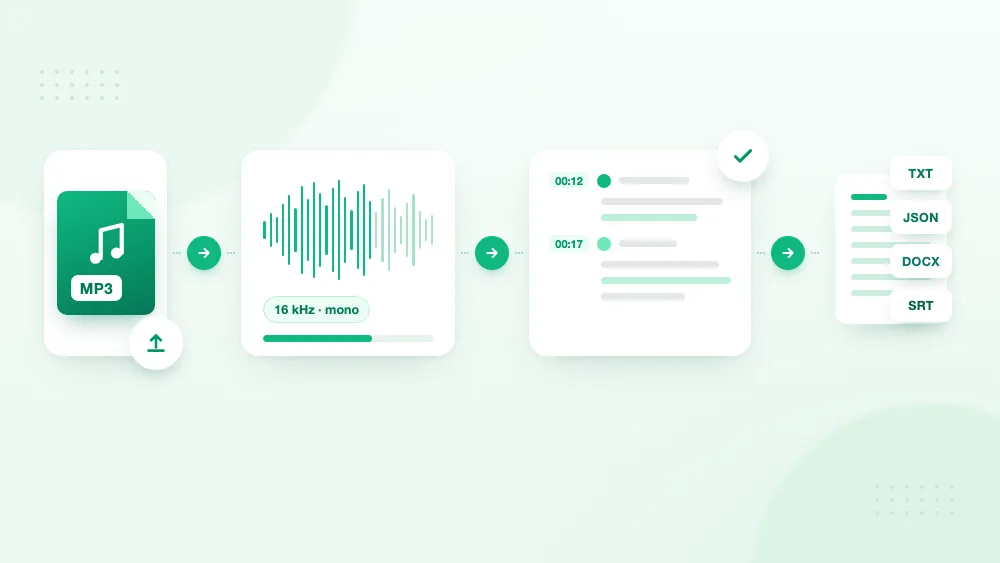
- Copy the text or export it as TXT, JSON, DOCX, PDF, SRT or VTT.
Step 1 — Check the recording before you upload
One minute of listening saves a wasted upload. Play the beginning and a section from the middle, and confirm three things: the file opens without errors, speech is audible, and it is the recording you meant to transcribe rather than an earlier take.
- Use the original file. A copy forwarded through a chat app has usually been re-compressed, and each pass removes detail that no tool can add back.
- Note the length and how many people speak. A 20-minute solo memo needs a quick read-through; a 90-minute panel with crosstalk needs a proper review.
- Listen for clipping, loud background noise or echo. If you hear them, read How to Transcribe Poor-Quality Audio before you start, because those problems set the ceiling on accuracy.
Step 2 — Upload the MP3 and know the limits
Open the MP3 to Text page and drop the file onto the upload area. Without an account you can try up to 3 files a day, each up to 50 MB and 2 hours long; the first 5 minutes are transcribed so you can judge the result on your own audio.
| Plan | Transcribed length | Largest file | Files per day |
|---|---|---|---|
| Free (preview) | First 5 minutes | 50 MB | 3 |
| Standard | Up to 5 hours | 2 GB | 20 |
| Premium | Up to 8 hours | 5 GB | Unlimited |
For MP3, the length limit arrives long before the size limit: five hours at 320 kbps is about 720 MB, well under 2 GB. The same upload also takes WAV, M4A, MP4 and 30+ other formats — see Supported Formats.
Step 3 — Wait for the file to be processed
TranscribeThis transcribes the complete recording and then shows the result, so you do not need to split a long MP3 into parts. Keep the tab open while it works; longer files take longer.
Before recognition, every upload is decoded to a 16 kHz mono signal. That is the input speech models are built for: OpenAI publishes the same setting in Whisper's audio loader (SAMPLE_RATE = 16000, one channel). It is why a bigger or "higher quality" copy of the same recording does not transcribe better — the extra detail is removed before the model hears it.
Step 4 — Review the transcript against the audio
This is where accuracy is won. The transcript is linked to the recording by timestamps, so you can jump to any line and hear exactly what was said. Spend your attention where automatic transcription fails most often:
- Proper names, company and product names, abbreviations.
- Numbers, prices, dates and web addresses — a misheard figure is the costliest error.
- Specialist vocabulary from medicine, law, engineering or your own field.
- Passages where two people talk at once.
- Any sentence you will quote or base a decision on.
On Standard and Premium, speaker labels are added automatically. Rename "Speaker 1" and "Speaker 2" to real names and fix any turn given to the wrong person; similar voices and crosstalk are the usual cause. The free preview has no speaker labels. Where a word is genuinely unclear, mark it as unclear instead of guessing.
Step 5 — Copy or export the result
You can always copy the text and paste it into any editor. For a file, pick the export that matches where the transcript goes next.
| Format | Best for | Plan |
|---|---|---|
| TXT | Plain text for any editor or notes app | Free account and up |
| JSON | Structured text with timing, for scripts and data work | Free account and up |
| DOCX | Editing and comments in Word or Google Docs | Standard, Premium |
| A fixed document to share or archive | Standard, Premium | |
| SRT | Subtitle draft for most video players and editors | Standard, Premium |
| VTT | Subtitle draft for web video players | Standard, Premium |
How to transcribe an MP3 by hand
Manual transcription needs nothing beyond a media player, but it takes several times longer than the recording itself, because every passage has to be paused, replayed and typed. It is the right choice for a short clip, for material you are not allowed to upload anywhere, or for a passage that needs close editorial control.
- Open the MP3 in a player you can control from the keyboard.
- Slow playback slightly if it helps, without making speech unclear.
- Type one speaker turn at a time.
- Add speaker labels and timestamps in one consistent format.
- Replay anything you are unsure of instead of guessing.
- Proofread once more while listening to the whole recording.
A practical middle ground: let automatic transcription produce the first draft, then review it by hand against the recording. You keep the control of manual work without the hours of typing.
Do you need to convert MP3 to WAV first?
No. Upload the MP3 directly. MP3 is a lossy format: when the file was created, part of the audio information was discarded to make it small, and converting it to WAV cannot bring that information back. You only get a much larger file with the same sound.
| One hour of audio as | Approximate size |
|---|---|
| MP3 at 128 kbps | 58 MB |
| MP3 at 320 kbps | 144 MB |
| WAV, 16-bit 44.1 kHz stereo (CD quality) | 635 MB |
| What the recognizer uses: 16 kHz mono | 115 MB |
Because every upload is reduced to 16 kHz mono before recognition, the extra size of a WAV adds nothing to accuracy. What matters is how clearly the voice was captured. If you still have the original recording from the device, use that; if the MP3 is the only version, upload it as it is.
What affects the quality of an MP3 transcript
Accuracy depends on how the voice was recorded far more than on the file format. These five factors cause most errors:
| Factor | What it does | What helps |
|---|---|---|
| Distance from the microphone | Distant voices lose the consonants that separate similar words | Record close to the speaker next time; review distant passages by ear |
| Background noise | Music, traffic and keyboards mask quiet words and names | Use the original file; review the affected sections |
| Overlapping speech | Two voices at once confuse both words and speaker labels | Correct overlapping turns by hand |
| Names and jargon | Unfamiliar names and terms are the most common errors | Check every proper noun and term against the audio |
| Damaged source audio | Clipped or distorted speech has lost information for good | Mark unclear words instead of guessing; changing the format cannot repair it |
How to format the transcript
Keep the structure simple and consistent: one paragraph per speaker turn, the same label for each person throughout, and a timestamp wherever a reader may need to go back to the recording. The video transcript formatting guide covers layouts, captions and subtitles in more detail. For example:
- [00:00:12] Interviewer — What changed after the first customer test?
- [00:00:17] Participant — We moved the instructions onto the first screen, because people could not find them in the menu.
Decide early between a clean read, with filler words and false starts removed, and a verbatim record, where every "um" stays. A clean read suits articles, notes and summaries; verbatim suits research analysis and anything where hesitation matters. Apply the choice to the whole transcript, and note it at the top so readers know what they are looking at.
Frequently Asked Questions
Can I transcribe an MP3 to text without converting it?
Yes. Upload the MP3 directly. Converting it to WAV does not improve accuracy: every upload is decoded to 16 kHz mono before recognition, and a conversion cannot restore detail that MP3 compression already removed.
Can I transcribe an MP3 for free?
You can try it without an account: the first 5 minutes of each file are transcribed, for files up to 50 MB and 2 hours, up to 3 files a day. Complete transcripts of longer recordings need Standard (up to 5 hours per file) or Premium (up to 8 hours).
Can an MP3 with several speakers be transcribed?
Yes. On Standard and Premium, speaker labels are added automatically. Review them where voices sound alike or people talk over each other, and rename them to real names. The free preview does not include speaker labels.
Which export format should I choose?
TXT for plain text you will paste elsewhere and JSON for structured data — both on a free account. DOCX for editing, PDF for a fixed document, and SRT or VTT for subtitle drafts are on Standard and Premium.
Is automatic MP3 transcription error-free?
No. It is a fast first draft. Names, numbers, technical terms and overlapping speech are the usual errors, so check them — and anything you will quote — against the recording.
Related resources
Reviewed by the TranscribeThis product team · Last updated: October 2026