


Key facts
| Core layout | Speaker label + timestamp per turn, then the text as a readable paragraph |
|---|---|
| Transcript vs captions | A transcript is read as a document; captions are short timed segments shown on screen |
| Subtitle limits (Netflix, English) | 42 characters per line, 2 lines, up to 20 characters per second |
| Our SRT/VTT drafts | One cue per transcript segment: typically 1.7 seconds and 31 characters |
| Exports | TXT and JSON on a free account; DOCX, PDF, SRT and VTT on Standard and Premium |
A basic video transcript template
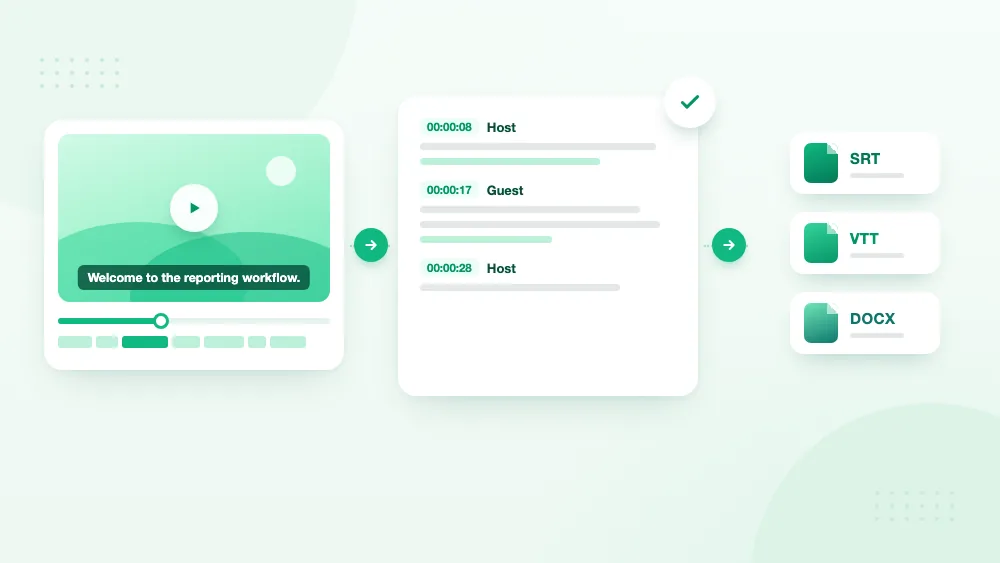
Most video transcripts work best in one simple layout: a timestamp and a speaker label at the start of each turn, followed by what that person said as a normal paragraph. It reads like a document, and every timestamp lets a reader jump back to the exact moment in the video.
- [00:00:08] Host — Welcome. Today we are going to show how the new reporting workflow works.
- [00:00:17] Guest — The first change is that every report now keeps a visible revision history.
- [00:00:28] Host — Where can a user find the earlier versions?
Three rules keep it usable. Start a new paragraph whenever the speaker changes. Use the same label for the same person throughout — "Host" in one place and "Anna" in another confuses readers and search. And correct names and specialist terms before anyone else sees the transcript, because those are the words automatic transcription gets wrong most often.
What to include in a video transcript
Speaker names
Use a real name when it is known and appropriate to publish. Otherwise use a clear role — Host, Guest, Interviewer, Speaker 1. On Standard and Premium, speaker labels are added automatically and can be renamed once for the whole transcript.
Timestamps
Put a timestamp at each speaker change, or every 30–60 seconds in a long monologue. Editors and researchers want more of them; a published transcript reads better with fewer.
Paragraphs and punctuation
Break long speech into paragraphs of a few sentences. Add punctuation for meaning, but do not rewrite what the speaker claimed.
Non-speech information
Add markers such as [music], [laughter] or [inaudible] only where they help a reader follow the video. A transcript full of background sounds is harder to read, not more accurate.
Clean read or verbatim?
Decide this before you edit, because it changes almost every line. A clean-read transcript removes filler words, repetitions and false starts when they add no meaning. It is easier to read and publish, but the editor must not change what the speaker intended. A verbatim transcript keeps the "um", the repeated words and the unfinished sentences.
| Clean read | Verbatim | |
|---|---|---|
| Keeps filler words | No | Yes |
| Keeps false starts | No | Yes |
| Best for | Articles, show notes, course pages, blog posts | Research analysis, interviews where hesitation matters |
| Main risk | Over-editing that changes meaning | Hard to read in long passages |
Whichever you choose, apply it to the whole transcript and say so at the top. An automatic transcript is a working draft: if yours must meet a legal, medical, research or publication standard, write that standard down and review the draft against it.
Transcript, captions and subtitles are different things
The three are often mixed up, but they are built for different jobs. The W3C accessibility guidance draws the line clearly: captions are for the same language as the spoken audio and include the non-speech sounds needed to understand the content, while subtitles carry speech translated into another language.
| Output | Main use | Structure |
|---|---|---|
| Transcript | Reading, search, documentation | Speaker labels, paragraphs, optional timestamps |
| Captions | Accessibility in the original language | Short timed segments, speech and important sounds |
| Subtitles | Viewers who speak another language | Short timed segments, translated |
A transcript formatted as a document should never be uploaded as captions as it is: it has no timing and its paragraphs are far too long for the screen. Going the other way works — a caption file already holds the words and timing a transcript needs.
What is inside an SRT or VTT file
Both are plain-text files of numbered or unnumbered cues: a time range and the line or two of text shown during it. The differences are small but break uploads when ignored:
- SRT numbers every cue and writes milliseconds after a comma: 00:00:08,000 --> 00:00:12,500.
- VTT must start with the word WEBVTT and writes milliseconds after a period: 00:00:08.000 --> 00:00:12.500, as defined in the W3C WebVTT specification.
- VTT is the format web players read natively; SRT is the one most video editors and platforms accept.
Readability limits come from style guides rather than the formats. Netflix's English timed text style guide, one of the most widely referenced, allows 42 characters per line, two lines per subtitle, and a reading speed of up to 20 characters per second for adult programmes (17 for children's).
How TranscribeThis subtitle drafts are built — and what to fix
Our SRT and VTT exports create one cue per transcript segment, keep the segment's exact start and end times, and do not add speaker names. We measured what that produces: across 333,000 segments from 502 transcripts processed in the last 30 days, the typical cue lasts 1.7 seconds and holds 31 characters; nine in ten are under 4.4 seconds and 65 characters.
So length is rarely the problem — only 3.7% of cues exceed two 42-character lines. Speed is: about half of the cues run faster than 20 characters per second, because the timing follows speech closely and leaves no extra time on screen.
- Merge neighbouring short cues from the same speaker into one subtitle.
- Extend cue end times into the pauses so each line stays up long enough to read.
- Split the few long cues at a natural phrase break.
Which export format to choose
Pick the format by where the transcript goes next. Each export below describes exactly what TranscribeThis puts in the file.
| Format | What is inside | Plan |
|---|---|---|
| TXT | One paragraph per speaker turn ("Speaker 1: …"), renamed speakers, no timestamps | Free account and up |
| JSON | Full text, language, duration and every segment with start, end, text and speaker | Free account and up |
| DOCX | Editable document; with timestamps on, a bold speaker name at each change | Standard, Premium |
| The same layout as DOCX, as a fixed document | Standard, Premium | |
| SRT | Subtitle draft, one numbered cue per segment | Standard, Premium |
| VTT | Subtitle draft for web players, one cue per segment | Standard, Premium |
How to create the first draft
Typing a transcript from scratch takes several times the length of the video. Starting from an automatic draft turns the job into editing. The Video to Text converter takes MP4, MOV, WEBM and 30+ other formats; without an account it transcribes the first 5 minutes of files up to 50 MB, and Standard and Premium handle full videos up to 5 and 8 hours.
- Upload the video on the Video to Text page and wait for the whole file to be processed.
- Rename the speaker labels to real names or clear roles such as Host and Guest.
- Correct names, numbers and specialist terms against the video.
- Choose clean read or verbatim, and apply that choice to the whole transcript.
- Export the format that fits the final use, with timestamps turned on if readers need them.
The transcript appears after the whole video has been processed — this is not live captioning. If the audio is noisy or several people talk over each other, plan extra time for step 3.
Frequently Asked Questions
What is the standard format for a video transcript?
There is no single universal layout. The practical standard is a timestamp and speaker label at each turn, followed by the speech as a readable paragraph. Formal projects such as research studies or broadcast publishing often set their own style guide.
How often should timestamps appear?
At every speaker change, plus every 30–60 seconds during long monologues. More timestamps help editing and verification; fewer make a published transcript easier to read.
Should I remove filler words?
Remove them in a clean-read transcript when they add no meaning. Keep them in a verbatim transcript when hesitation or exact wording matters. In both cases, never change what the speaker meant.
Can a transcript be used as captions?
Not as a document. Captions need short timed segments, so start from an SRT or VTT export, then merge short cues and check line length, reading speed and sync against the video.
What is the difference between SRT and VTT?
Both hold timed text cues. SRT numbers each cue and uses a comma before the milliseconds; VTT starts with the word WEBVTT and uses a period. VTT is native to web players, SRT is accepted by most video editors.
Related resources
Reviewed by the TranscribeThis product team · Last updated: October 2026