


Key facts
| What matters most | Distance: a phone at the front beats a better device at the back |
|---|---|
| Record from Mic | Free account; one recording stops automatically at 1 hour |
| Online lectures | Meeting bot on Standard and Premium; leaves if not admitted within 8 minutes |
| A 90-minute lecture | About 86 MB as MP3 at 128 kbps, 43 MB at 64 kbps (free uploads: 50 MB) |
| Transcript timing | After the recording is processed — no live captions |
The short version
A lecture recording is good enough for transcription when every word from the lecturer is clearly audible. Resolution, camera angle and expensive gear matter much less than these five habits:
- Get permission from the lecturer and check your institution's rules.
- Sit at the front, or put the phone on the lectern if you are allowed to.
- Silence notifications and make sure the battery and storage will last the whole class.
- Record ten seconds, play it back and listen for echo, hum and distance.
- After class, upload the file and check names, terms and numbers in the transcript.
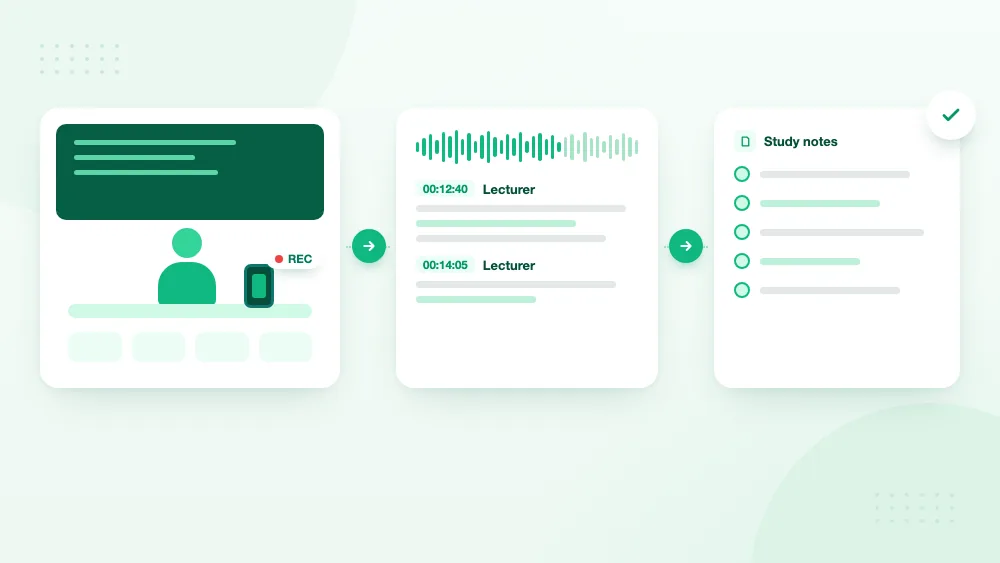
Get permission before you record
Recording a class is often restricted. Universities set their own policies, some lecturers forbid it, and the law in some places requires everyone's consent before a conversation is recorded. Students with an accessibility accommodation may have a formal right to record; others usually need to ask.
- Ask the lecturer before the class, not halfway through it.
- Check the course page or student handbook for a recording policy.
- If classmates speak during discussions, tell them the session is being recorded.
- Keep recordings for personal study unless you have permission to share them.
Online platforms make recording visible. Microsoft Teams, for example, notifies every participant as soon as a recording starts, and a meeting bot appears in the participant list. This is guidance, not legal advice — your institution's rules come first.
In-person lectures: phone, laptop or the browser
For a lecture in a room, the simplest recorder is the one you already carry. A phone at the front of the room captures clearer speech than a laptop at the back, because distance costs more clarity than any difference between devices.
- Phone recorder app (Voice Memos on iPhone, Recorder or Sound Recorder on Android): reliable for long classes; most keep recording with the screen locked, but lock the phone during your test to make sure the file keeps growing.
- Record from Mic in TranscribeThis: records straight into your account in the browser, with echo cancellation and noise suppression switched on. It needs a free account, and each recording stops automatically at 1 hour.
- Laptop microphone: usable from the front row, but fan noise and typing end up in the recording.
Dedicated recorders and file formats
A dedicated voice recorder or a clip-on microphone gives cleaner sound and longer battery life than a phone, and it is worth it if you record every week. The file format then decides how big the recording gets. For a 90-minute lecture:
| Format | Approximate size, 90 minutes | Fits a free upload (50 MB)? |
|---|---|---|
| MP3 or M4A at 64 kbps | 43 MB | Yes |
| MP3 or M4A at 128 kbps | 86 MB | No — Standard or Premium |
| WAV, 16-bit 44.1 kHz mono | 476 MB | No — Standard or Premium |
| WAV, 16-bit 44.1 kHz stereo | 953 MB | No — Standard or Premium |
WAV keeps more detail, but it adds nothing to a transcript: every upload is converted to 16 kHz mono before recognition. A speech setting at 64–128 kbps is plenty. Standard accepts files up to 2 GB and 5 hours, Premium up to 5 GB and 8 hours.
Online lectures on Zoom, Google Meet or Teams
You have two ways to capture an online lecture. The first is the platform's own recording, if your account allows it — Google Meet, for example, records only on certain Workspace editions and saves the file to the organiser's Google Drive. Download the recording and upload it here.
The second is the TranscribeThis meeting bot, available on Standard and Premium. Paste the meeting link and the bot joins as "TranscribeThis Bot" and records the session; the transcript appears after the lecture ends. It behaves like a guest, so a few rules apply:
- The host may need to admit it. If nobody lets it in within 8 minutes, it leaves.
- If the meeting stays empty for 8 minutes, it leaves.
- If the host refuses permission to record, it leaves after about 10 seconds.
The bot is offered for Zoom, Google Meet and Microsoft Teams. For any other platform, record the lecture with the platform itself and upload the file.
Before the lecture: a two-minute checklist
Most failed lecture recordings fail before the class starts: a flat battery, a full phone, a notification sound in the middle of a key point. Run through this list while people are still finding their seats.
| Check | Why it matters |
|---|---|
| Battery and storage | A 90-minute recording needs both to last; plug in or free space if in doubt |
| Do Not Disturb on | Calls and alerts can interrupt or pause some recorder apps |
| Ten-second test | Play it back: is the voice clear, or distant and echoey? |
| Microphone uncovered | A phone face-down on a soft surface or in a case pocket muffles speech |
| Online: bot admitted | Check the participant list before the lecturer starts talking |
If the test sounds faint, move closer or use an external microphone. Fixing distance now is worth more than any later processing.
Where to place the recorder
Put the microphone where it hears the lecturer's voice directly, ideally within two or three metres. Every extra metre adds room echo and background noise, and those blur exactly the words a transcript needs: names, terms and numbers.
- Best: on the lectern or the front desk, with permission.
- Good: front row, facing the lecturer, on a firm surface.
- Avoid: next to laptop fans, projectors and air-conditioning vents.
- Avoid: tables that vibrate when people type or put things down.
- Avoid: inside a bag or a pocket, even if the app is still recording.
In discussion-based classes, one device near the lecturer will not capture students across the room clearly. Either put a second device in the room or expect to correct audience questions by hand.
During the lecture
Once recording starts, leave the device alone. Picking it up, sliding it across a desk or putting it in a pocket creates loud handling noise that covers the lecturer completely.
- Glance at the timer once after a few minutes to confirm it is still running.
- Keep the microphone uncovered — no notebook or sleeve over the phone.
- Write down the time of any slide, formula or diagram you will want later; audio cannot capture what was on the board.
- Note unfamiliar names and terms as you hear them; they are the words most likely to need correcting.
- For a browser recording, keep the tab open and the device awake; for anything over an hour, rely on the phone's recorder app instead.
Turn the recording into a transcript and notes
Upload the finished file on the Lecture Transcription page. Without an account you can try it on files up to 50 MB and 2 hours, and the first 5 minutes are transcribed; Standard and Premium transcribe the whole lecture.
- Stop and save the recording, and keep the original file.
- Upload it on the Lecture Transcription page, unless you recorded it in TranscribeThis or with the meeting bot.
- Wait for the whole lecture to be processed.
- Check the lecturer's name, course terms, formulas, dates and numbers against the audio.
- Use the timestamps to replay difficult passages, then build your notes from the checked transcript.
Treat the transcript as raw material, not finished notes. Check it against the recording wherever a lecturer defined a term, gave a date or worked through a formula, then condense it into your own structure. Standard and Premium add AI summaries, which are a good first outline — compare them with the full transcript before you rely on them for an exam.
Frequently Asked Questions
What is the best way to record a lecture?
Use the closest permitted microphone — usually your phone at the front of the room — and make a short test recording before the class. Clear speech matters more than video quality when you want a transcript.
Can I record a lecture with my phone?
Yes, if recording is allowed. Use the phone's built-in recorder app, place the phone close to the lecturer with the microphone uncovered, and turn on Do Not Disturb so calls and alerts do not interrupt the recording.
How long can a browser recording in TranscribeThis be?
Up to 1 hour per recording; it stops automatically at 60 minutes. For longer lectures, record with your phone's recorder app and upload the file, which Standard transcribes up to 5 hours and Premium up to 8.
Can TranscribeThis record an online lecture?
Yes, on Standard and Premium. Paste the Zoom, Google Meet or Microsoft Teams link and the meeting bot joins and records; the host may need to admit it. The transcript appears after the lecture ends.
Does TranscribeThis provide live lecture captions?
No. It transcribes the finished recording. If you need captions during the lecture itself, use the live caption feature of the meeting platform or your institution's accessibility service.
Related resources
Reviewed by the TranscribeThis product team · Last updated: October 2026