


At a glance
| What "live" means | Text appears during speech (streaming), not after the file is processed |
|---|---|
| Capture models | Meeting bot, bot-free/device capture, on-device app, or embeddable SDK |
| Evaluate on | Latency, accuracy, speaker handling, captions, privacy, platform support |
| Verify per vendor | Prices, free minutes, and limits change — check each vendor's current page |
| TranscribeThis is | Post-recording, not a live streaming transcriber |
| Free here (no account) | First 5 minutes transcribed, files up to 50 MB, preview export |
What counts as live transcription?
Live transcription converts speech to text in real time, so words appear on screen within a second or two of being spoken. That is a genuinely different job from post-recording transcription, where you record or upload a finished file and the tool processes it afterward. Live tools trade some accuracy for immediacy; post-recording tools can re-listen to the whole file and usually produce a cleaner transcript.
| Live (real-time) | Post-recording | |
|---|---|---|
| When text appears | While people are speaking | After the file is uploaded/processed |
| Typical use | Live captions, meeting notes as they happen, dictation | Interviews, lectures, recorded meetings, voice notes |
| Accuracy ceiling | Lower — the model can't hear ahead | Higher — the whole recording is available |
| Cost model | Often per-minute streaming or seat-based | Often per-file, minutes, or storage |
| Corrections | Hard to fix mid-stream | Review and edit before exporting |
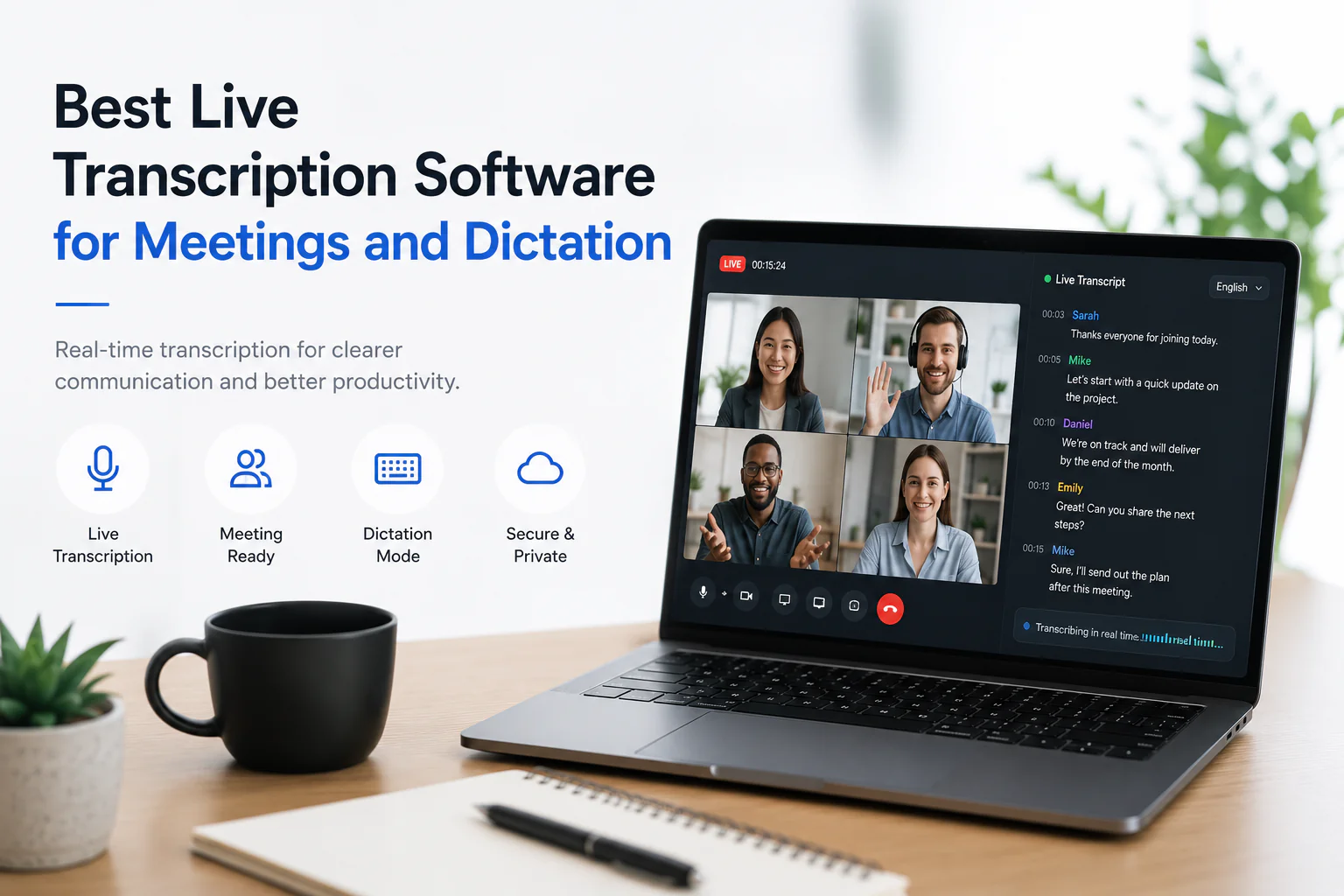
What to evaluate in a live transcription tool
The specifics that decide whether a live tool fits your workflow are latency, accuracy, how it captures audio, whether it produces usable captions, and what it does with your data. Judge each tool on these criteria rather than a headline accuracy number.
| Criterion | What to check | Why it matters |
|---|---|---|
| Latency | How fast text appears after speech; whether words get revised as context arrives | The core promise of "live" — too slow and it is just delayed transcription |
| Accuracy | Performance on your accents, jargon, and noise — not a marketing % | Real-time models can't re-listen, so hard audio suffers more than post-recording |
| Capture method | Bot in the call, bot-free/device capture, on-device app, or SDK | Determines setup, consent optics, and which platforms work |
| Speaker handling | Whether it labels who spoke in real time and how well it separates overlap | Live diarization is harder than post-hoc; overlap is the weak spot for all tools |
| Captions & exports | Live caption display plus what you can save (TXT, SRT/VTT, etc.) | Captions on screen and a reusable transcript file are different features |
| Privacy & consent | Retention, training terms, where audio is processed, recording-consent rules | Live capture records other people — consent and data handling matter more |
| Platform support | Zoom / Meet / Teams, OS, browser, mobile; offline vs cloud | A tool that doesn't join your meeting platform is a non-starter |
Best for meetings, dictation, and accessibility
The "best" live tool depends on the job, because meetings, dictation, and accessibility captions stress different criteria. Match the use case to the criteria above rather than picking a single overall winner.
Meetings
For live meeting notes, capture method and speaker labels matter most. Tools known for meeting transcription — for example Otter — typically either join the call as a bot or capture from the device. Evaluate how it joins Zoom, Google Meet, and Teams, whether attendees are told it is recording, and how it labels speakers in real time. Confirm exact plan limits on the vendor's current pricing page.
Dictation
For dictation you are one speaker talking to your device, so latency and on-device accuracy dominate and speaker labels are irrelevant. On-device dictation tools (including the OS's built-in dictation, and third-party apps in the Superwhisper / BetterDictation category) prioritize fast local response. Check whether audio stays on the device and how it handles punctuation and custom vocabulary.
Accessibility captions
For live captions supporting deaf and hard-of-hearing participants, latency and readability come first, and the caption stream itself is the product. Verify that captions display clearly during the event and, if you also need a saved record, that the tool exports a transcript afterward — live captions on screen and a reusable transcript file are separate features.
Bot vs bot-free vs device vs SDK capture
How a live tool hears the conversation shapes its setup, its consent optics, and which platforms it supports. There are four common capture models, and each has trade-offs.
| Capture model | How it works | Trade-off |
|---|---|---|
| Meeting bot | A participant bot joins the call to capture audio | Visible to attendees (clearer consent), but adds a participant and depends on platform support |
| Bot-free / device | Captures system or meeting audio from your device | No extra participant, but others may not see that recording is happening |
| On-device app | Runs locally, transcribing the mic or system audio on your machine | Best privacy story; limited to what your device can hear and process |
| SDK / embedded | Streaming speech-to-text built into another app | Flexible for developers; quality and privacy depend on how it is integrated |
Speaker labels and exports
Speaker labels and export formats are where a "transcript" becomes something you can actually use later. Live tools often show captions during the event but vary a lot in what they save afterward, so check both separately.
- Speaker labels (diarization): assigns who said what. Doing this reliably in real time is harder than after the fact, and overlapping speech is the hardest case for any tool.
- Timestamps: link text back to the audio so you can jump to a moment. Word-level is more precise than segment-level.
- Exports: a saved TXT, DOCX, PDF, or caption file (SRT/VTT) is what makes a transcript reusable — live captions that vanish after the call are not the same thing.
- Captions vs transcript: SRT/VTT are timed caption files for video; a transcript is the readable record. Some tools give one, some give both.
For reference, TranscribeThis (post-recording) provides word-level timestamps on uploads and recordings, speaker labels on Standard and Premium, and exports to TXT, DOCX, PDF, SRT, and VTT (full export is a paid feature; the free tier gives a preview). SRT/VTT are reviewable caption drafts, not finished, accessibility-certified subtitles.
Privacy and consent
Live transcription usually means recording other people, so consent and data handling matter more than with a file you already own. Before relying on any live tool, confirm three things: what it retains, whether your audio trains its models, and where processing happens.
- Consent: recording calls or meetings may legally require the other participants' consent depending on your jurisdiction — check the local rules before recording.
- Retention: how long the tool keeps audio and transcripts, and whether you can delete them.
- Training: whether your content is used to improve the vendor's models, and whether you can opt out.
- Processing location: on-device transcription keeps audio local; cloud tools send it to a server.
On TranscribeThis, files are encrypted in transit (TLS), retention is configurable (guest uploads auto-delete unless saved to an account), and processing partners operate under no-training terms. At-rest encryption is provider-dependent, so treat it as a question to confirm rather than a blanket guarantee — the same skepticism applies to any vendor's security claims.
Live vs post-recording transcription (the honest trade-off)
If you do not actually need text on screen while people are talking, post-recording transcription is usually the better choice — it is more accurate, easier to review, and often cheaper. Live transcription earns its cost when the timing itself is the point: accessibility captions, following along in real time, or dictating hands-free.
TranscribeThis sits firmly on the post-recording side. You record or upload a file and it is processed afterward, which means the model can use the whole recording and you can review and correct the draft before exporting. That makes it a strong fit for interviews, lectures, recorded meetings, and voice notes — and a poor fit if your requirement is genuinely live captions during an event. Be clear about which one you need before you choose a tool.
Illustrative example. A support team wants a searchable record of customer calls but nobody reads captions during the call. Post-recording transcription gives a cleaner, reviewable transcript at lower cost. A university lecture that must caption live for accessibility is the opposite case — there, real-time captions are the requirement, and post-recording alone would not meet it.
Frequently Asked Questions
What is the best live transcription software?
There is no single winner — it depends on the job. For live meetings, weigh capture method and speaker labels; for dictation, latency and on-device accuracy; for accessibility, caption readability. Tools like Otter are known for meeting transcription, while on-device dictation apps focus on fast local response. Confirm current prices and limits on each vendor's page, and test one real recording in each before committing.
What is real-time transcription software?
It converts speech to text while people are speaking, so words appear on screen within a second or two. That differs from post-recording transcription, which processes a finished file afterward and is usually more accurate because the model can use the whole recording.
What is the best real-time speech to text tool?
Judge real-time speech-to-text on latency, accuracy on your accents and jargon, capture method, and privacy — not a marketing accuracy percentage. The best choice is the one that performs well on your own audio and joins the platforms you actually use, so test candidates on a real sample.
What is live captions software?
Live captions software displays a real-time text stream of what is being said, mainly for accessibility. Note that on-screen captions and a saved transcript file are separate features — if you also need a reusable record, confirm the tool exports a transcript, not just captions that disappear after the event.
Does TranscribeThis do live transcription?
No. TranscribeThis is post-recording: you record or upload a file and it is processed afterward. It does not stream a live transcript on screen while you speak. It is the alternative for when you do not need text during the event and want a more accurate, reviewable transcript instead.
Is live or post-recording transcription more accurate?
Post-recording transcription is usually more accurate because the model can process the entire recording rather than guessing in real time. Live transcription trades some accuracy for immediacy. Choose live only when you genuinely need text during the event.
How is a meeting bot different from live captions?
A meeting bot joins a call to capture its audio, often feeding transcription after the meeting; live captions display text on screen as people speak. A tool can do one, the other, or both, so check which behaviour a plan actually provides.
How should I compare live transcription tools?
Run the same real meeting or recording through each candidate and measure latency, accuracy on names and jargon, speaker-label quality, caption display, exports, and the retention and training terms. Vendor pricing and limits change often, so verify specifics on each vendor's current page rather than trusting a listicle.
Related resources
Reviewed by the TranscribeThis product team · Last updated: July 2026