


At a glance
| Most common cause | The browser or app has not been granted microphone permission |
|---|---|
| Second most common | A different input device is selected (or none is plugged in) |
| Often overlooked | Another app — a call, recorder, or meeting tool — is holding the mic |
| Fix order | Browser permission → OS privacy → input device → close apps → reload |
| Phone vs desktop | On phones, check the app permission; on desktop, check both browser and OS |
| If nothing works | Try a different browser, restart the device, or check for an outage |
Quick fix checklist
Most Google Translate microphone problems are permission or device issues, not broken hardware. Work down this list in order and test the mic after each step — the first fix that sticks is usually near the top.
- Grant microphone permission to the browser or app (see Step 1).
- Check your operating system privacy settings so the browser is allowed to use the mic (Step 2).
- On a phone, confirm the app itself has microphone access (Step 3).
- Select the correct input device if you have more than one mic.
- Close any app that might be holding the microphone — a call, recorder, or meeting tool.
- Reload the page (or restart the app) and test the microphone.
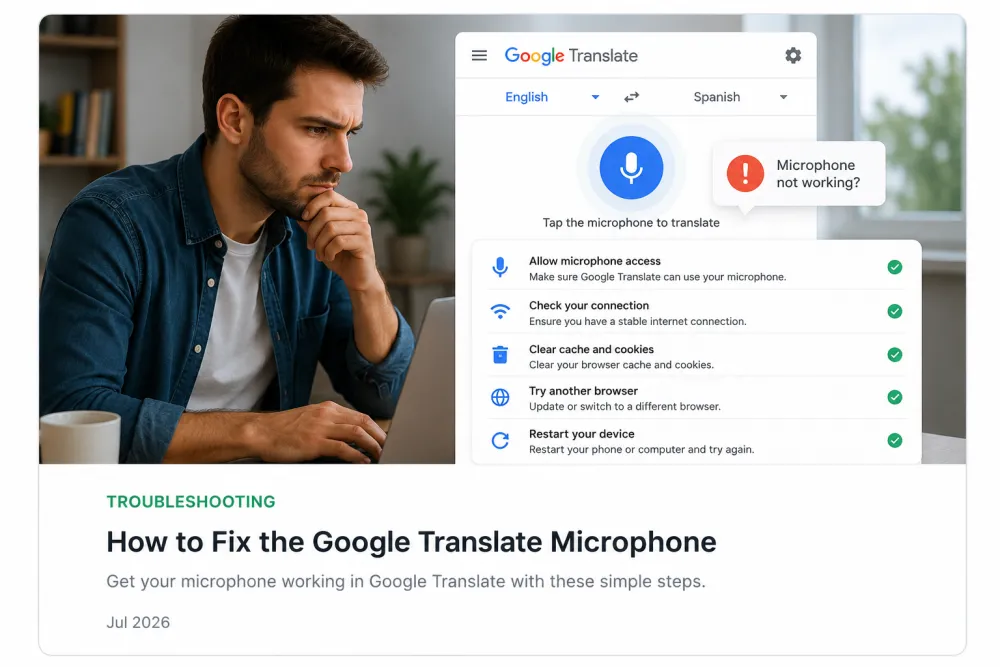
Step 1 — Allow microphone access in the browser
The single most common cause is a browser that has not been granted microphone permission for the Google Translate site. When a page first asks to use the mic, most browsers show a one-time prompt; if you dismissed or blocked it, the mic stays off until you re-enable it.
Exact labels differ by browser and version, but the general path is the same: open the site permissions for translate.google.com and set the microphone to Allow.
- Look for a small camera/mic icon or a lock/tune icon in the address bar while the Translate page is open — most browsers surface site permissions there.
- Open that panel and set Microphone to Allow (not Block or Ask).
- If you see the site listed under blocked permissions, remove the block, then reload the page so the change takes effect.
Step 2 — Check Windows or macOS privacy settings
If the browser permission is already set to Allow but the mic still does nothing, the operating system may be blocking microphone access for the whole browser. This is a separate layer from the site permission and catches people out because the browser looks correctly configured.
- On Windows, open Settings and look under Privacy (or Privacy & security) for Microphone, then make sure microphone access is on and your browser is allowed in the app list.
- On macOS, open System Settings and look under Privacy & Security for Microphone, then confirm your browser is toggled on.
- After changing an OS-level toggle, fully quit and reopen the browser — some browsers only pick up the new permission on restart.
Step 3 — Check iPhone or Android app permissions
In the Google Translate mobile app, the microphone is controlled by the app permission, not a browser setting. If voice input or conversation mode does nothing, the app most likely does not have microphone access.
- On iPhone, open Settings, find Google Translate in the app list, and turn on Microphone.
- On Android, open Settings, go to Apps, select Translate, open Permissions, and allow the Microphone.
- If you use Translate inside a mobile browser instead of the app, apply the browser and OS steps above to that browser.
Select the correct input device
On a desktop with more than one microphone — a laptop mic, a webcam mic, a headset, an external interface — the system may be listening to a device that is not picking up your voice. Selecting the right input often fixes a mic that appears "dead."
- In your OS sound settings, pick the input device you are actually speaking into and confirm its input level moves when you talk.
- If you use a headset or USB mic, make sure it is connected and set as the default input before opening Translate.
- Unplugging and reconnecting a USB mic, or switching the input and back, can wake a device the browser stopped using.
| Symptom | Likely cause | Fix |
|---|---|---|
| No mic prompt ever appears | Site permission blocked or previously dismissed | Allow the microphone in the browser site permissions, then reload (Step 1) |
| Browser allowed but still no audio | OS is blocking mic access for the browser | Enable microphone for the browser in OS privacy settings and restart it (Step 2) |
| Mic works in one app but not Translate | Another app is holding the microphone | Close calls, recorders, and meeting apps, then reload Translate |
| Input meter never moves | Wrong input device selected | Choose the correct microphone in sound settings and check its level |
| Voice input missing in the phone app | App lacks microphone permission | Turn on Microphone for Translate in phone settings (Step 3) |
| Everything set but errors out | Network drop or temporary service issue | Check your connection, reload, and try again later (Test section) |
Close apps using the microphone
Many systems let only one app use the microphone at a time, so a background call, voice recorder, or meeting app can quietly block Translate. This is a frequent cause when the mic "worked yesterday" and stopped for no obvious reason.
- Close video-meeting apps (Zoom, Meet, Teams), softphones, and voice recorders, including ones minimized to the background.
- Look for a mic-in-use indicator — many phones and desktops show a small dot or icon when something is recording.
- If you are not sure what has the mic, restarting the device releases it and is often the fastest reset.
Clear site settings and update the app
If permissions look correct but the mic still fails, a stale site setting or an outdated app can be the problem. Resetting the site permission or updating the app clears state that a simple reload will not.
- On desktop, clear or reset the site permissions for translate.google.com, then reload and re-allow the microphone when prompted.
- Try the page in a private/incognito window or a different browser — if the mic works there, an extension or a cached setting in your main browser is the cause.
- On mobile, update the Google Translate app to the latest version, since older builds can behave differently with newer OS permission models.
Test the microphone
After each change, confirm the mic actually works before moving on — that tells you which step was the fix and stops you changing settings you did not need to.
- Reload the Translate page (or restart the app) so new permissions are applied.
- Open your OS sound settings and speak — a moving input level confirms the microphone and device selection are working at the system level.
- Then try voice input in Translate; if the system level moves but Translate still fails, the issue is in the browser/app permission or a service problem, not the hardware.
Alternative voice-to-text workflow
If you cannot get a live microphone working, or you already have audio you want as text, a post-recording tool sidesteps the live-mic problem entirely. Instead of translating speech through your microphone in real time, you record or upload a file and get an editable transcript back.
TranscribeThis is post-recording, not a live mic translator. You drop an existing recording (or record one, which needs an account) and it returns a transcript you can review, correct, and export. It transcribes speech to text and can translate the result into other languages, but it does not replace Google Translate's live conversation mode.
- Without an account you can transcribe the first 5 minutes of a file up to 50 MB and preview the result.
- Supported inputs include MP3, WAV, M4A, and the audio track of video files like MP4 and MOV.
- The transcript is an editable AI draft — review names, numbers, and specialist terms before relying on it.
Frequently Asked Questions
Why is my Google Translate microphone not working?
The most common reasons are a missing site permission in your browser, an operating-system privacy setting blocking the browser, the wrong input device selected, or another app already using the microphone. Work through browser permission, OS privacy, input selection, and open apps in that order.
Why is the Google Translate mic not working in Chrome or another browser?
Usually the site permission is set to Block, or the operating system is not allowing that browser to use the microphone. Set the microphone to Allow in the site permissions, confirm the browser is enabled in your OS privacy settings, then reload the page. Exact menus vary by browser and version.
How do I enable the mic in Google Translate?
On desktop, open the site permissions for translate.google.com in your browser and set Microphone to Allow, then reload. In the mobile app, open your phone settings, find Google Translate, and turn on the Microphone permission. Test the mic after enabling it.
The microphone works in other apps but not Google Translate — what now?
That points to a per-site or per-app permission, or another app holding the mic. Re-allow the microphone in the Translate site or app permissions, close any calls, recorders, or meeting apps, then reload Translate and try again.
Why does voice input fail in the Google Translate phone app?
The app most likely does not have microphone permission. On iPhone, enable Microphone for Translate in Settings; on Android, allow the Microphone under the app's permissions. Updating the app to the latest version also helps on newer operating systems.
Could a browser extension block the Translate microphone?
Yes. Privacy or script-blocking extensions can stop a page from accessing the microphone. Try the page in a private window or with extensions disabled — if the mic works there, an extension or cached setting is the cause.
I fixed the permissions but it still fails intermittently — why?
Live voice features depend on your network and the service being available. A dropped connection or a temporary outage can cause failures even when settings are correct. Check your connection, reload, and try again later.
Can I just turn a recording into text instead of using a live mic?
Yes. TranscribeThis is a post-recording tool: upload or record a file and it returns an editable transcript, which sidesteps live-microphone problems. Without an account you can transcribe the first 5 minutes of a file up to 50 MB. It is not a live conversation translator.
Related resources
Reviewed by the TranscribeThis product team · Last updated: July 2026