


What Is Remote Meeting Transcription?
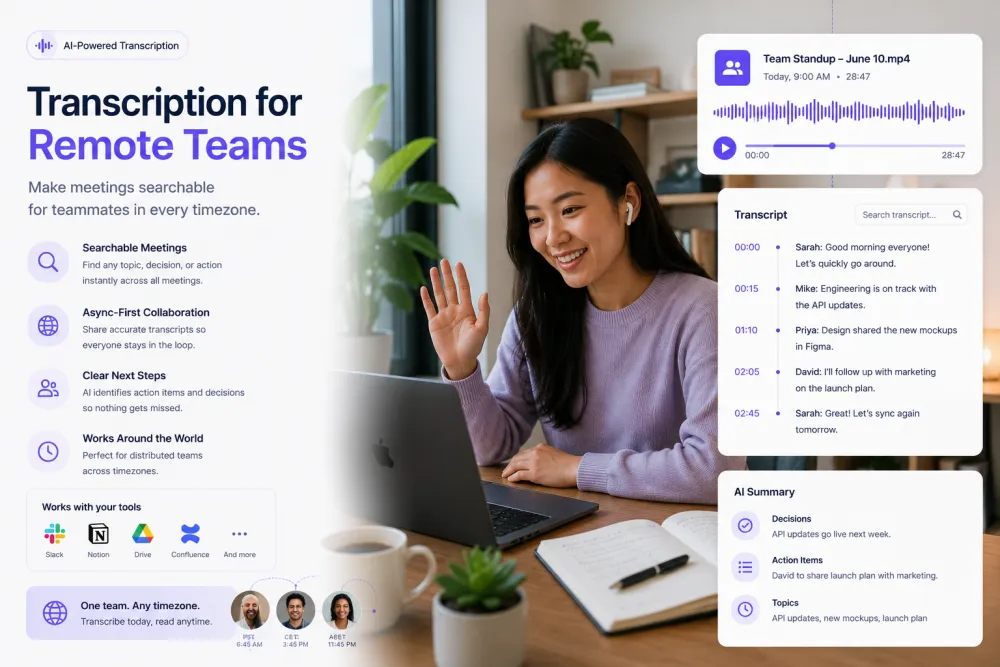
Remote meeting transcription turns a recorded team call into searchable text with speaker labels and word-level timestamps. It serves distributed and hybrid teams whose members work across different time zones. The input is a recording exported from a conferencing tool or captured in a meeting room; the process adds speaker attribution and timing; the output is a transcript that can be read, searched, summarized, and shared asynchronously.
For a distributed team the value is access, not tidiness. Someone asleep during the call still needs to know what was decided, what changed, and what is now expected of them — without watching a fifty-minute video or asking a colleague to reconstruct it in a message thread.
Remote Team Transcription at a Glance
| Inputs | Recorded team meetings, standups, project reviews, all-hands, retros, planning sessions |
|---|---|
| Speakers | Each participant labeled automatically, so a remote reader can tell who said what |
| Search | Keyword search inside a meeting and across your own past recordings |
| Async context | Word-level timestamps, so a line can be replayed rather than trusted |
| AI output | Summary, key quotes, action points, decisions, risks, deadlines |
| Annotation | Highlights in colour with a comment attached to the passage |
| Category boundary | Bot joins only the calls you send it to, no live transcription, no writing back to project tools |
| Sharing | Copy the text into any app, downloads, revocable read-only links |
| Account | Transcription works without an account; AI passes and annotation need a free account |
Give the Time Zone That Missed It the Whole Meeting
A teammate who was asleep opens the transcript, reads the summary, then clicks straight to the two minutes that concern them. That is a different experience from a recording link, where finding the relevant passage means dragging a scrubber and guessing.


Pull Out What Was Decided and What Was Agreed
One-click passes turn a fifty-minute call into the parts that change someone's week: a summary, the decisions, the action points, the deadlines said aloud, and the risks somebody raised. Each extracted line traces back to its timestamp, so a disputed decision is settled by playback rather than by memory.
Search Meetings You Have Already Had
Six weeks later someone asks when the team agreed to drop a feature. Keyword search finds which of your recordings mention it, and the timestamp inside takes you to the sentence. It matches words rather than meaning, so a term nobody actually said will not surface.

What a Meeting Artifact Looks Like
An illustrative sprint review: the transcript excerpt, and the artifacts produced from the full recording.
Illustrative example, not a real meeting. The AI summarizes what was said rather than filling a fixed template, and the comment is written by a teammate — the product does not decide who owns a task.
What the Transcript and Passes Give You
Depending on the meeting, the record and the AI passes can help you locate:
Remote and Hybrid Meeting Types
Anything recorded with speech in it transcribes the same way; these are the meetings distributed teams bring most often.
The recurring call that sets the week. A transcript means the person on the other side of the world reads it instead of asking for a recap.
Short, fast, and full of crosstalk. Most useful for the status updates you slept through, though overlapping speech is exactly where speaker labels degrade.
Where scope, dates, and priorities actually change. The decisions pass earns its keep here more than in any other meeting.
One long session most of the company will not attend live. A searchable transcript with a summary reaches the time zones that could not be there.
Candid discussion that is rarely written down well. Agree with the team that a retro is being recorded before you record it — candour depends on it.
Long calls that produce commitments. The action points and deadlines passes turn a two-hour session into a list someone can work from.
Many speakers, several disciplines, and vocabulary one group uses that another does not. Speaker labels are what make the recording readable afterwards.
A room recorded on a laptop or phone with remote participants dialed in. Audio quality is the variable — distance from the microphone matters more than the device.
Where Team Recordings Come From
Zoom
Upload the MP4 or M4A that a cloud or local Zoom recording produces. Fully remote calls transcribe best, because each person sits close to their own microphone.
Google Meet
Meet recordings land in Google Drive. Download the file and upload it here. Drive is also available as an export destination on paid plans.
Microsoft Teams
Teams recordings are stored in OneDrive or SharePoint. Download the video file and upload it — the transcript stays linked to the video timeline.
In-room and phone recordings
A laptop, a phone on the table, or a conference-room system. Placement drives accuracy: a modest device in the middle of the table beats a better one at the far end.
On paid plans (Standard, Premium), the TranscribeThis bot joins Zoom, Google Meet, or Microsoft Teams meetings you send it to and records them; the host may need to admit it. You can also download a recording from any of these tools and upload it. Either way, the transcript arrives after the meeting, not live.
The Async Meeting Workflow
Each step is something a distributed team already does; the transcript is what lets the meeting reach the people who were not in it.
- Record in your tool
- Upload the file
- Transcript
- Check speakers
- AI passes
- Highlight and comment
- Share a link
- Search it later
A Recording Link vs. a Searchable Transcript
| Sharing the recording | TranscribeThis |
|---|---|
| A colleague watches fifty minutes to find two | They read a summary and click to the two minutes |
| Notes written by whoever volunteered that day | A full record nobody on the team had to type |
| "I think we agreed Thursday" | The line that said Thursday, playable at its timestamp |
| Finding an old decision means remembering which call it was in | Keyword search finds which recording mentions it |
| New joiners depend on a colleague's memory | New joiners read the meetings they were not there for |
Transcription vs. a Meeting Assistant
TranscribeThis transcribes recordings of your meetings. On paid plans you can send the TranscribeThis bot to a Zoom, Meet, or Teams call to record it; or you record the meeting with the tool you already use — Zoom, Meet, Teams, a laptop in a conference room — and then upload the file. There is a manual step either way, and we are not going to pretend there is not.
A meeting assistant is a different category. Products such as Otter, Fireflies, Fathom, and Granola join the call as a participant, record it live, transcribe while it happens, and some of them answer questions about past meetings or write back into other tools. TranscribeThis does none of that. No bot joins your call, nothing is transcribed live, and nothing is written into a project tracker.
The tradeoff runs both ways. You send the bot or upload the file yourself; in exchange nothing joins your calls uninvited — the bot attends only the meetings you send it to, and if you upload a recording instead, no bot appears in the participant list at all. For teams working under client-confidentiality terms, or a security policy that restricts third-party attendees, that control is a real advantage — not a reason to choose after-the-call transcripts over live capture in general. If your team wants live notes or in-call captions with no manual step, a meeting assistant is the right category and this is not it.
Meeting Audio Accuracy and Limitations
Accuracy is not a fixed number. These are the conditions that move it for distributed teams, and the checks worth doing before anyone acts on a line:
Recording Consent Across a Distributed Team
Recording a meeting means recording identifiable colleagues, and sometimes clients. This section is guidance, not legal advice.
Say it at the start of the call and give people room to object. On a distributed team, someone will be in a jurisdiction you did not think about.
Some places require consent from every participant, others from only one. With a team spread across borders, following the strictest rule in the room is the safe default.
Your own IT or security policy, and any client NDA, may restrict recording or third-party processing regardless of what the law permits. Check before the meeting, not after.
Files travel over TLS and are stored encrypted. Guest uploads that are not saved to an account are deleted automatically; in an account, retention is under your control. Your recordings are not training data.
Formats, Languages, and Limits
Try It With a Real Meeting
Upload last week's team call and review the transcript, the speaker labels, and the decisions pass before choosing a plan. No signup for files up to 50 MB.
Related Pages
Frequently Asked Questions
Can TranscribeThis transcribe remote team meetings?
Yes. Upload the recording your conferencing tool produced and you get a speaker-labeled transcript with word-level timestamps, usually in a couple of minutes for an hour of audio. Transcription works without an account for files up to 50 MB.
Does it automatically join my meetings?
Only when you send it. This is the most important boundary on the page. On paid plans (Standard, Premium) the TranscribeThis bot joins a Zoom, Google Meet, or Microsoft Teams meeting you send it to, shows up in the participant list, and records the call; the host may need to admit it. It joins nothing uninvited, and the transcript arrives after the call, not live. You can also record with the tool you already use, then upload the file.
Does it transcribe live, while the meeting is happening?
No. There is no live transcription and no in-call captioning. The transcript is produced after you upload a finished recording — roughly two minutes of processing per hour of audio.
Does it update Jira, Asana, Linear, or our project tool?
No. Action points and decisions are extracted into the transcript view, and you copy across what you need. There are no third-party integrations and nothing syncs automatically; there is no connector to any project-management or issue tracker.
Does everyone on our team see all the transcripts?
No. Team plans share billing seats, not libraries. A colleague does not see your transcripts until you share one — either with a revocable read-only link or by exporting it. There is no shared team workspace where every recording appears automatically.
How do I get a Zoom, Meet, or Teams recording into it?
Download it, then upload it. Zoom gives you an MP4 or M4A; Meet recordings land in Google Drive; Teams stores them in OneDrive or SharePoint. Those tools are named as sources you download from, not as connectors — there is no direct integration with any of them.
Which AI summaries are available for a meeting?
A fixed catalogue: a summary of the meeting, plus key quotes, action points, decisions, risks, and deadlines. They are one-click passes rather than a prompt you write, and they need a free account. Every extracted line traces back to a timestamp.
Can I find a decision from a meeting weeks ago?
Yes, if the word you remember was actually spoken. Keyword search finds which of your recordings contain a term, and inside a recording you click the line to hear it. It matches text rather than meaning, so a synonym you did not search for will not surface.
Does it work for a hybrid meeting recorded in a room?
Yes, with a caveat. Room audio is the hardest input on this page: several people at a distance from one speakerphone, plus remote voices coming through it. It transcribes, but expect more speaker-label errors than on a fully remote call, and put the microphone in the middle of the table.
Do we need consent to record a team meeting?
Tell participants at the start, every time. Requirements differ by country and by US state — some need consent from everyone present, others from one party — and your employer's policy or a client NDA may restrict recording regardless. On a cross-border team, follow the strictest rule that applies to anyone on the call. This is guidance, not legal advice.
Can it label who said what on a call with eight people?
Yes, and labels are worth reviewing at that size. Speaker separation works automatically, but many participants, similar voices, and the crosstalk typical of a fast standup all reduce its accuracy. Fix a mislabeled speaker before you share the transcript onward.
Can we get a custom meeting-notes template?
No. The passes are a fixed catalogue and there are no custom templates. If your team has a required notes format, export the transcript as TXT, DOCX, or PDF and apply the format yourself.
Details on encryption, retention, and how we handle your files: Privacy Policy · Terms of Service
Reviewed by the TranscribeThis Speech Recognition Team.
Last updated: July 2026