


Quick diagnostic
| Nothing loads at all | Check the official status page and your own connection first |
|---|---|
| Signed in but stale | Refresh, sign out and back in, or update the app |
| Only the browser tab | Clear cache, disable extensions, try a private window |
| Bot did not join a call | Re-check calendar sync and meeting permissions |
| No audio captured | Confirm microphone and system-audio permissions |
| Cannot save or record more | You may be at an account minute or storage limit |
| Need the transcript today | Export what you have, or upload the recording elsewhere |
Start with the most likely cause
Most "Otter is not working" reports trace back to one of a few causes, and they are worth ruling out in order of likelihood. A short outage or a local browser glitch is far more common than a permanent product fault, so start there before assuming the tool is broken or switching services.
| Symptom | Likely cause | First fix |
|---|---|---|
| App or site will not load | Service outage or your connection | Check the status page and your network |
| Loads but data looks old | Stale session or outdated app | Refresh, re-sign in, or update |
| Only one browser misbehaves | Cache or an extension | Clear cache, try a private window |
| Meeting bot did not appear | Calendar or meeting permissions | Re-authorize calendar and check host settings |
| Transcript is empty or silent | Microphone or system-audio access | Grant OS and app audio permissions |
| Cannot record or save more | Plan minute or storage limit | Review usage; export or delete old files |
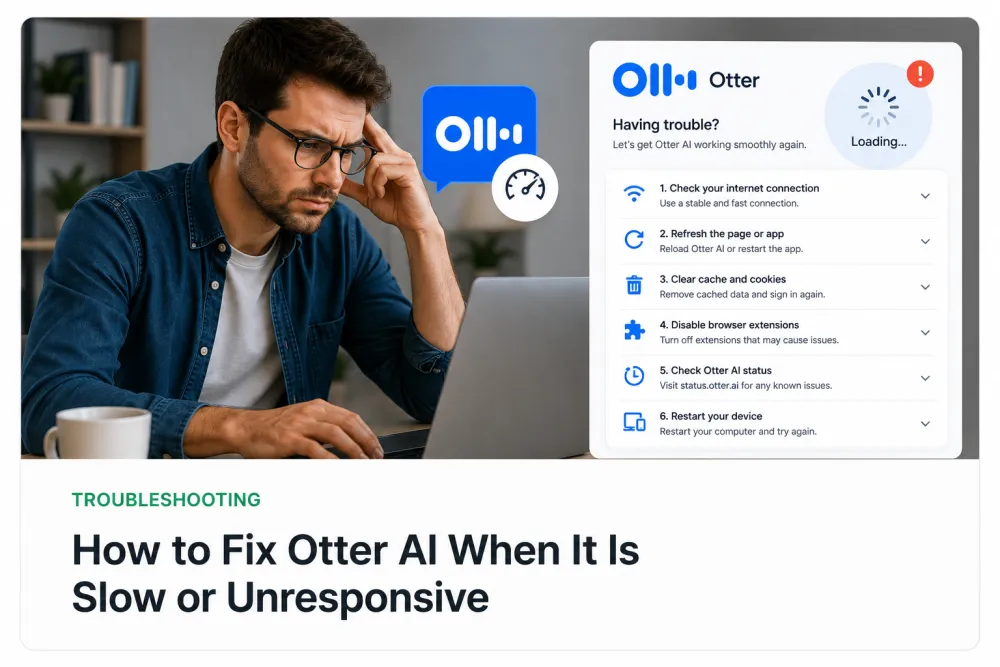
Step 1 — Check the service status
Before changing anything on your side, confirm the service itself is up. If many users are affected at once, the fastest fix is to wait — no local change will help during a provider-side incident.
- Look for an official Otter status or incident page and check for open incidents.
- Search current reports from other users to see whether an outage is widespread or just you.
- If there is an active incident, note it and wait — a temporary outage is not a permanent product flaw.
Step 2 — Refresh, sign out, and update
A stale session is the most common cause of an app that loads but behaves oddly — old transcripts, buttons that do nothing, or a spinner that never resolves. Resetting the session clears most of these.
- Reload the page or fully quit and reopen the app.
- Sign out completely, then sign back in to refresh your session token.
- Update the mobile or desktop app to the latest version from its store.
- Reboot the device if the app still will not start cleanly.
Step 3 — Browser and cache issues
If the problem only appears in the web app, it is usually the browser rather than the service. Cached files and extensions are the two usual suspects.
- Clear the browser cache and cookies for the site, then reload.
- Open the app in a private or incognito window — if it works there, an extension is the cause.
- Disable ad blockers, privacy extensions, or script blockers for the domain.
- Try a second modern browser to isolate a browser-specific bug.
Windows and macOS issues
Desktop and companion apps add operating-system permissions that the web app does not need, and these are a frequent point of failure after an OS update. If a desktop app fails to capture a meeting, the OS is often blocking it silently.
- On macOS, check System Settings → Privacy & Security for Microphone and Screen Recording access.
- On Windows, check Settings → Privacy → Microphone and confirm the app is allowed.
- Reinstall the desktop or companion app if it stopped launching after an update.
- Confirm the app is running and not blocked by corporate device-management policies.
Microphone and meeting permissions
An empty or silent transcript almost always means the audio never reached the tool. Permissions are the first thing to verify, at both the operating-system and the meeting level.
- Grant microphone access to the browser or app at the OS level.
- Select the correct input device — the wrong microphone captures silence.
- For meetings, confirm the host allows transcription or recording; some accounts disable it.
- Check that system-audio capture (not just the mic) is permitted when you need both sides of a call.
Calendar and meeting integration
When a meeting assistant fails to join a call, the cause is usually the calendar connection or the meeting's own settings rather than the transcription engine. Meeting-bot workflows depend on a chain of authorizations that any one broken link can stop.
- Re-authorize the calendar connection if it expired or was revoked.
- Confirm the event actually has a video link the assistant can join.
- Check that the meeting host permits external bots or recording participants.
- Verify the assistant is enabled for the specific calendar and account you are using.
Account limits and storage
If recording or saving suddenly stops, you may have reached a plan limit rather than hit a bug. Most transcription tools, including this one, cap monthly minutes and storage by tier.
- Review your remaining monthly minutes and storage in account settings.
- Delete or archive old recordings to free space if you are at a storage cap.
- Check whether a recent plan change or trial expiry reduced your limits.
- Confirm billing is current — a failed payment can pause features.
Export existing recordings
If your account still opens but a feature is broken, get your data out first so you are not blocked. Exporting your existing transcripts protects your work regardless of what caused the failure.
- Export finished transcripts to TXT or DOCX for editing and archiving.
- Export captions (SRT or VTT) if you need them for video.
- Download the original audio where the tool allows it, so you can re-transcribe elsewhere.
- Keep a local copy of anything important before troubleshooting further.
Alternative upload workflow
If you need a transcript today and the outage is not clearing, you can upload the recording to a different tool without setting up a meeting bot. TranscribeThis is post-recording: you record or upload a file and it is transcribed afterwards, so it does not depend on a live calendar integration to produce a transcript.
- Download or locate the audio or video file you already have.
- Drop it into the uploader at the top of this page.
- Without an account, the first 5 minutes of a file up to 50 MB are transcribed as a preview.
- Review the draft, correct names and numbers, and export TXT, DOCX, PDF, SRT, or VTT.
Frequently Asked Questions
Why is Otter AI not working?
The usual causes, in order of likelihood, are a temporary service outage, a stale session, a browser cache or extension conflict, a broken calendar or meeting permission, a microphone-access problem, or an account minute or storage limit. Check the status page first, then work down the list.
Is Otter.ai down right now?
Check Otter's official status or incident page and current user reports to see whether an outage is widespread. If an incident is open, waiting is the only fix — a short outage is not a sign the product is permanently broken.
Why is Otter AI so slow?
Slowness is often local: a cached or overloaded browser, too many extensions, a weak network, or a large file still processing. Try a refresh, a private window, and a second browser. During a provider-side incident, performance can also dip until it is resolved.
How do I troubleshoot Otter AI step by step?
Check service status, refresh and re-sign in, clear the browser cache, verify desktop OS permissions, confirm microphone and meeting access, re-authorize calendar integration, review account limits, then export your data. Fix the most likely cause first before assuming the tool is faulty.
The meeting bot did not join my call — why?
This is usually a calendar or meeting-permission issue, not a transcription fault. Re-authorize the calendar connection, confirm the event has a joinable video link, and check that the host allows external recording bots.
My transcript is empty or silent. What happened?
The audio likely never reached the tool. Confirm microphone access at the operating-system and app level, select the correct input device, and enable system-audio capture if you need both sides of a call.
Can I get my transcripts out if the app is broken?
If your account still opens, export existing transcripts to TXT or DOCX, export captions as SRT or VTT, and download original audio where allowed. Do this before further troubleshooting so your work is safe.
What can I use if I need a transcript right now?
Upload the recording to a post-recording tool that does not need a meeting bot. On this page you can transcribe the first 5 minutes of a file up to 50 MB free, review the draft, and export it — useful while an outage clears.
Related resources
Reviewed by the TranscribeThis product team · Last updated: July 2026