


At a glance
| Goal | Stop the Otter Notetaker bot from auto-joining your meetings |
|---|---|
| Why one fix is not enough | Auto-join, calendar sync, app access, and org integrations are separate switches |
| Personal account | You can usually disable auto-join and disconnect calendars yourself |
| Work account | An admin may control the integration — a self-serve removal will not fully stop it |
| Existing recordings | Removing access does not delete past transcripts — delete those separately |
| Note on steps | Otter's interface changes; treat exact menu names below as a guide, not a guarantee |
Quick fix by platform
The fastest way to stop an Otter bot depends on where it is joining from. Otter can attach to meetings through a connected calendar, through platform-level integrations, or by being invited manually — so the right switch differs by source. The table below maps each entry point to the control that stops it.
| Where Otter can join from | How to stop it |
|---|---|
| Auto-join from your calendar | Turn off auto-join / "OtterPilot" in Otter settings, then disconnect the calendar |
| A single scheduled Zoom or Teams meeting | Remove the Otter bot / assistant from that meeting's guest list or notetaker settings |
| A connected Google or Microsoft account | Revoke Otter's access in your Google or Microsoft account security settings |
| A Zoom or Teams app you installed | Uninstall the Otter app from the Zoom App Marketplace or Teams app list |
| An organization-wide integration | Ask a workspace admin to remove Otter — you cannot fully disable this yourself |
Step 1 — Disable auto-join in Otter
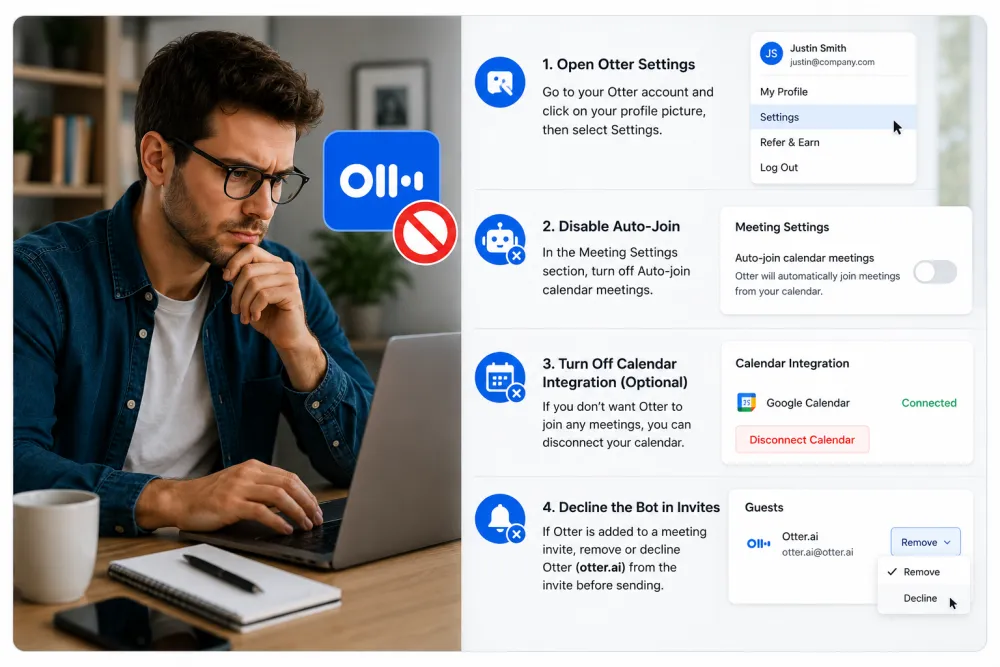
Start by turning off auto-join inside Otter itself — this is the single change that stops the bot from adding itself to future events. In current versions of Otter this lives in the app's settings, often under a "Meetings", "Notetaker", or "OtterPilot" area, as a toggle for automatically joining calendar meetings.
- Open Otter on the web or in the app and go to Settings (check the app's settings if the layout differs from this).
- Look for the auto-join / automatic notetaker option and turn it off.
- If there is a per-meeting or per-calendar setting, disable it there too so no individual events stay opted in.
Step 2 — Disconnect the Google or Microsoft calendar
Disconnecting the calendar cuts off how Otter learns about your meetings in the first place. Even with auto-join disabled, a connected calendar is what lets the bot see and queue future events, so removing that link is the more durable fix.
- In Otter, find the connected accounts or calendar section (commonly under Settings, "Apps", or "Integrations" in current versions).
- Disconnect the Google or Microsoft calendar you linked when you signed up.
- If you connected more than one calendar, disconnect each one — Otter can watch several.
Disconnecting inside Otter stops it reading your calendar going forward, but it does not always revoke the permission you granted on the Google or Microsoft side. Step 3 closes that.
Step 3 — Revoke app access and remove it from Zoom or Teams
Revoking access in your Google or Microsoft account is what fully withdraws the permission Otter was granted, independent of Otter's own settings. This is the step that matters most if you no longer trust the connection, because it stops working even if Otter's in-app toggles are wrong or reset.
Google Workspace or personal Google account
In current versions, open your Google Account security settings and find the list of third-party apps with account access (often labelled "Your connections to third-party apps & services" or "Third-party apps with account access"). Select Otter and remove its access. This revokes the calendar and profile permissions you granted.
Microsoft 365 or personal Microsoft account
In your Microsoft account, open the privacy or security area that lists apps and services you have given access to, find Otter, and remove it. On a work Microsoft 365 account, an admin may need to do this — see the admin section below.
Remove the app from Zoom and Teams
- Zoom: in the Zoom App Marketplace, open your installed apps, find Otter, and uninstall it (check Zoom's current app management screen if the path differs).
- Microsoft Teams: open your app list, locate Otter, and remove it; a Teams admin may control whether it can be re-added.
Admin-level removal (organization integration)
On a work account, some Otter connections are installed at the organization level and cannot be removed by an individual user. If you keep seeing the bot after doing everything above, the integration was almost certainly added by an admin for the whole workspace — you will need their help.
- In Google Workspace, an admin manages connected apps and OAuth access from the Admin console's security or app-access controls.
- In Microsoft 365, an admin manages enterprise applications and app permissions from the Microsoft admin and Entra (identity) admin centers.
- In Zoom, an account admin controls which Marketplace apps are pre-approved or installed for the organization.
Illustrative example. You disable auto-join, disconnect your calendar, and revoke Otter in your personal settings, but the bot still appears in a recurring team standup. That usually means the meeting organizer or an admin added Otter at the meeting or org level — ask them to remove it there, because your account-level changes cannot override an org-level integration.
Delete or retain existing data
Removing Otter's access stops new recordings but does not delete transcripts it already made — those stay in the Otter account until you remove them. Decide deliberately whether to keep or delete past conversations before you consider the job finished.
- To keep records, export the transcripts you need before deleting anything or closing the account.
- To remove them, delete the individual conversations in Otter, or delete or close the account if you want everything gone.
- On a work account, past recordings may be retained under company policy — check with your admin rather than assuming deletion is up to you.
Transcribe a finished recording without a meeting bot
If your goal was notes without a bot sitting in the call, you can transcribe a recording after the meeting instead of sending an assistant to join it live. TranscribeThis is post-recording: you record or export the meeting audio, upload the file, and it is processed afterwards — nothing joins the call as a visible participant.
- Record the meeting with your platform's own built-in recording, or export the audio you already have.
- Upload that file here; the first 5 minutes transcribe free with no account (files up to 50 MB).
- Review the draft, correct names and numbers, and export TXT, DOCX, PDF, SRT, or VTT.
Frequently Asked Questions
How do I turn off Otter AI?
Open Otter's settings and turn off the auto-join / automatic notetaker option, then disconnect any calendars you linked. To fully cut access, also revoke Otter in your Google or Microsoft account security settings. Exact menu names change between versions, so look for the toggle that mentions joining meetings automatically.
How do I remove Otter AI from Teams?
Open your Microsoft Teams app list, find Otter, and remove it. Then revoke Otter's access in your Microsoft account. On a work Microsoft 365 account, an admin may control the integration, so you may need to ask them to remove it for everyone.
How do I stop Otter AI from joining meetings?
Disable auto-join in Otter first, then disconnect the calendar it watches, and revoke its app access in Google or Microsoft. Removing the bot from a single meeting is not enough on its own — auto-join usually re-adds it from your calendar.
How do I disable Otter AI on a work account?
Do the personal steps (disable auto-join, disconnect calendar, revoke app access) first. If the bot still appears, the connection was likely added at the organization level, and only a Google Workspace, Microsoft 365, or Zoom admin can remove it fully.
Why does Otter keep rejoining my meetings after I removed it?
Because removing it from one meeting does not turn off auto-join. If auto-join is on and your calendar is still connected, Otter re-adds itself to upcoming events. Turn off auto-join and disconnect the calendar to stop the pattern.
Does removing Otter delete my past transcripts?
No. Revoking calendar and app access stops new recordings but leaves transcripts already saved in your Otter account. Delete individual conversations, or delete or close the account, if you want the existing data removed.
Can I get meeting notes without a bot in the call?
Yes. Record the meeting with your platform's own recording, then upload the file to a transcription tool afterwards. Upload a recording to TranscribeThis and nothing joins the meeting as a participant; the first 5 minutes are free without an account. (If you want a bot, TranscribeThis offers an opt-in one on paid plans.)
Does TranscribeThis use a meeting bot too?
Only if you choose it. TranscribeThis offers an opt-in meeting bot for Zoom, Google Meet, and Teams on the Standard and Premium plans. The default post-recording workflow needs no bot and does not connect to your calendar.
Related resources
Reviewed by the TranscribeThis product team · Last updated: July 2026