


At a glance
| Source | A recording made in the iPhone Voice Memos app (saved as .m4a) |
|---|---|
| Two routes | Native iOS transcription where available, or export the M4A and upload it |
| Output here | Editable transcript with word-level timestamps; speaker labels on Standard/Premium |
| Free (no account) | First 5 minutes transcribed, files up to 50 MB, preview export |
| Formats out | TXT, DOCX, PDF, SRT, VTT |
| Processing | Post-recording: the file is processed after upload (not live/real-time) |
Quick answer
To transcribe an iPhone Voice Memo, export the recording as an M4A file and upload it to the tool at the top of this page — you get an editable transcript with timestamps in a few moments. If your iPhone offers a built-in transcription feature for Voice Memos, you can use that too; whether it exists depends on your iOS version, language, and region, so check your own device rather than assuming.
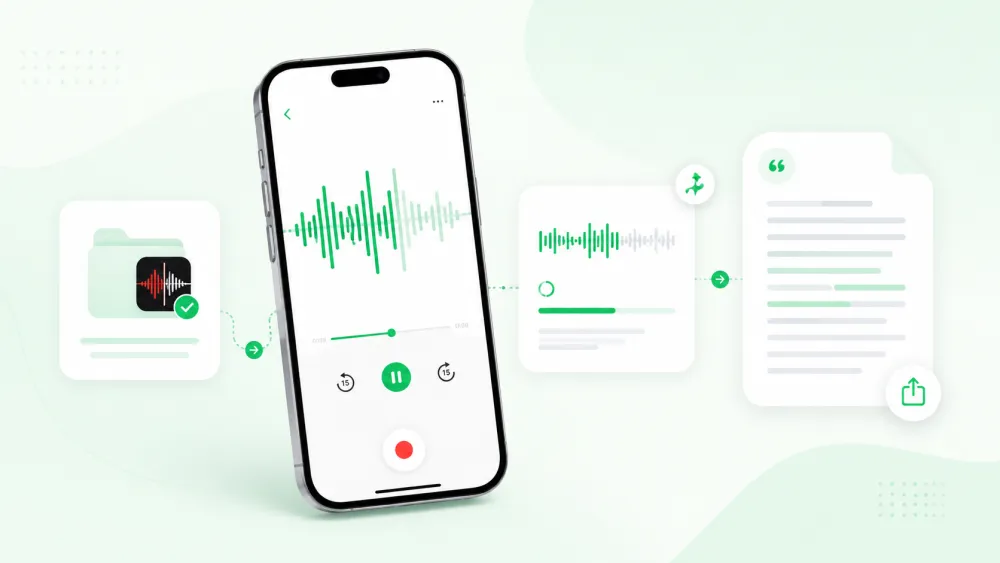
Step 1 — Export the M4A and upload it
The most reliable route works on any iPhone: send the Voice Memo out as a file, then upload that file here. Voice Memos are saved in Apple's .m4a (AAC) format, which uploads directly — no conversion needed.
- Open the Voice Memos app and tap the recording you want.
- Tap the three-dot (•••) menu, then Share.
- Choose "Save to Files" and pick a location (or AirDrop it to a Mac).
- On this page, tap the uploader and select the saved .m4a file.
You can upload straight from your iPhone in Safari, or move the file to a computer first. Either way the audio is decoded server-side and transcribed after upload.
Step 2 — Review speaker labels and timestamps
Once the draft appears, review it against the recording rather than trusting it blindly. Every line carries a word-level timestamp linked to the audio, so you can tap a word to hear exactly what was said and confirm the wording.
- Scan for [inaudible] or low-confidence passages and re-listen to them.
- Correct proper names, product names, numbers, and dates — these are what machines get wrong most often.
- If the memo has more than one voice and you are on Standard or Premium, speaker labels split the transcript by speaker; rename "Speaker 1" to real names. Diarization is not on the free tier.
Step 3 — Copy, edit, and export
When the transcript reads correctly, copy it or export a file in the format you need. Choose by where the text is going:
| Format | Use it for |
|---|---|
| TXT | Plain text for notes, search, or pasting elsewhere |
| DOCX | An editable document for reports or sharing |
| A fixed, shareable copy | |
| SRT / VTT | Timed caption drafts to review and load into a video editor |
Use native Voice Memo transcription where available
Recent versions of iOS have added on-device transcription features to Apple apps, but what is available on your phone depends on your iOS version, your language, and your region — so treat any specific version claim as something to verify, not a fixed fact.
To check what your own iPhone offers, open the recording in Voice Memos and look for a transcript button in the playback view, and open Settings to see which language and Apple Intelligence or dictation features are enabled for your region. If you do not see a native transcript option, the export-and-upload route in Step 1 works regardless of iOS version.
How to transcribe an iMessage audio message
An audio message sent in iMessage is a separate recording from a Voice Memo, but it transcribes the same way once you get the file out. Some iOS versions show a text preview of audio messages automatically; if you need a full, editable transcript, save the audio and upload it.
- Open the conversation and touch and hold the audio message.
- Tap "Save" (this stores it), or use the share option if shown, to export the audio file.
- Upload the saved file here and review the draft as in Steps 2–3.
Whether an auto-generated preview appears depends on your iOS version and language, so use the upload route when you need the whole message as editable text.
Old iPhones, unsupported languages, and existing recordings
The export-and-upload workflow does not depend on your iPhone model or iOS version, which makes it the dependable choice in three common cases:
- Older iPhones that never received a native transcription feature — any device that can share an .m4a file works.
- Languages Apple does not transcribe on-device in your region — uploads auto-detect the spoken language and support 31 languages for translation.
- Recordings you made months or years ago — old memos export and upload exactly like new ones.
Because the file is processed after upload rather than on your phone, the age of the recording or the phone makes no difference to the result.
Voice Memo vs M4A to text
"Voice Memo" and "M4A" describe the same thing from two angles: a Voice Memo is the recording you made in Apple's app, and .m4a is the file format it is saved in. Transcribing a Voice Memo means transcribing its M4A file — there is no conversion step, and no accuracy is lost by keeping the original .m4a, because every upload is decoded to 16 kHz mono for recognition anyway.
Privacy and sensitive recordings
Voice memos often hold personal notes, private conversations, or confidential work. Files are encrypted in transit (TLS), retention is configurable so you decide how long a transcript is kept, and you can delete a file at any time; guest uploads are removed automatically unless saved to an account. Processing partners operate under no-training terms, so your content is not used to train AI models. At-rest encryption is provider-dependent — check the current terms if that matters for your data.
If a recording includes other people, recording or transcribing it may require their consent depending on where you are. Check the rules for your jurisdiction before sharing or transcribing a private conversation.
Frequently Asked Questions
How do I transcribe a voice memo on my iPhone?
Open Voice Memos, tap the recording, use the three-dot menu to Share and Save to Files, then upload that .m4a file to the tool at the top of this page. You get an editable transcript with timestamps; the first 5 minutes are free with no account.
Can you transcribe a voice memo without an app install?
Yes. This works in your iPhone's browser — export the memo as a file and upload it here. There is nothing to install, and no account is needed to transcribe the first 5 minutes of a file up to 50 MB.
Does the iPhone transcribe voice memos automatically?
Some recent iOS versions add native transcription to Voice Memos, but availability depends on your iOS version, language, and region. Check the Voice Memos playback screen and Settings on your own device. If you do not see it, exporting and uploading the M4A works on any iPhone.
How do I turn a voice recording into text on iPhone?
Share the recording as a file (Save to Files), then upload it here. The audio is transcribed after upload and returned as editable text you can copy or export as TXT, DOCX, PDF, SRT, or VTT.
What file format are iPhone Voice Memos?
iPhone Voice Memos are saved as .m4a (AAC) files. That format uploads directly for transcription — no conversion is needed, and keeping the original .m4a does not lose accuracy.
How do I transcribe audio on iPhone that is already recorded?
Existing recordings work the same as new ones. Open the old memo, export it as a file, and upload it. The age of the recording or the phone model makes no difference because the file is processed after upload.
Can it tell apart two speakers in a memo?
Yes, on the Standard and Premium plans. Speaker labels split the transcript by speaker and you can rename them. The free tier does not include speaker identification.
Is my voice memo kept private?
Files are encrypted in transit, retention is configurable, and you can delete files yourself; guest uploads auto-delete unless saved to an account. Processing partners operate under no-training terms. At-rest encryption is provider-dependent, so check the current terms for sensitive recordings.
Can I get a Word or PDF file of the transcript?
Yes. Once the transcript is ready you can export TXT, DOCX, PDF, SRT, and VTT. Full export is a paid feature; the free tier gives a preview.
Related resources
Reviewed by the TranscribeThis product team · Last updated: July 2026