


At a glance
| Recording continues when locked? | Usually yes — the app records in the background once started |
|---|---|
| Depends on | Your iOS version and device settings (behavior changes between releases) |
| Lock Screen shows | A recording indicator and often playback/stop controls (varies by iOS) |
| Incoming call | Can interrupt or pause capture — verify afterwards |
| File format | M4A (AAC), saved in the Voice Memos library |
| Best practice | Do a short lock-screen test before any recording that matters |
| Transcribe it | Export or share the M4A and upload it here — first 5 minutes free |
Short answer
In most current setups, Voice Memos keeps recording after you lock the iPhone, as long as you started the recording first. Locking the screen puts the display to sleep but does not necessarily stop background audio capture. Because Apple changes exact behavior between iOS versions, the safest approach is to test it on your own device rather than assume.
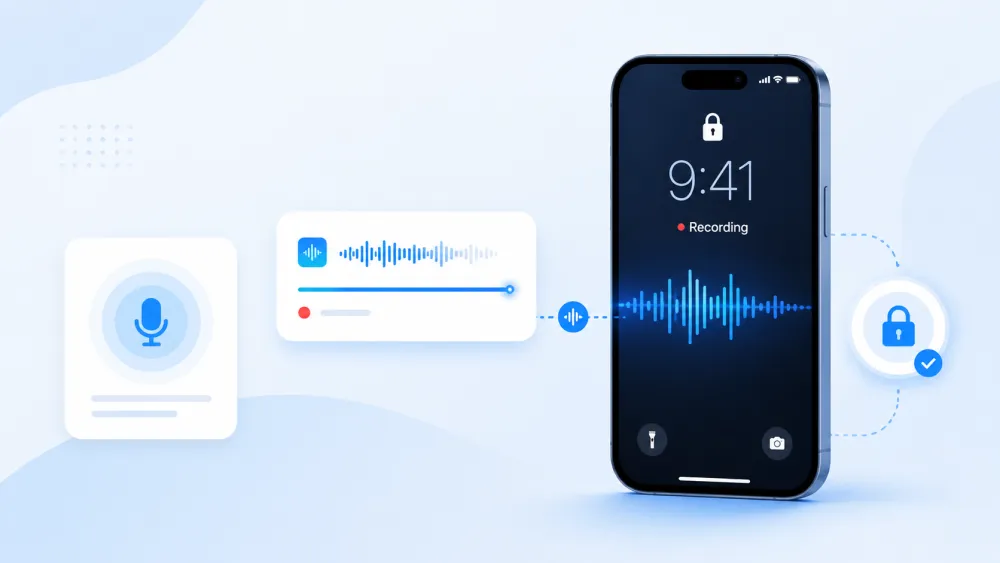
What happens when the screen locks
When you lock the phone during an active recording, the display turns off to save power while the microphone stays engaged in the background. The recording timer keeps advancing even though you cannot see it, and audio is written to the file continuously. What you should not do is close or force-quit the Voice Memos app from the app switcher — that ends the recording.
- Locking the screen: recording generally continues in the background.
- Swiping the app closed in the app switcher: recording stops.
- Battery dying or a forced restart: recording stops and unsaved audio may be lost.
- Behavior can differ slightly between iOS versions — do not treat any single version as permanent.
How to start and check a recording
Start the recording while the phone is unlocked, then lock it — do not expect to begin a fresh recording from a locked screen. The reliable pattern is to open Voice Memos, tap record, confirm the timer is counting up, then lock the screen.
- Open the Voice Memos app and tap the red record button.
- Confirm the on-screen timer starts counting up and audio levels move as you speak.
- Lock the screen with the side button if you need the display off.
- When finished, wake and unlock the phone, return to Voice Memos, and tap stop.
- Check the saved memo in the library and play the start to confirm it captured cleanly.
What appears on the Lock Screen
While Voice Memos records, iOS typically surfaces a recording indicator so you and anyone nearby can tell the microphone is active. Depending on the iOS version, the Lock Screen or a banner may also show playback or stop controls, and the status bar or Dynamic Island area may display a recording marker. Exact placement and wording change between releases, so what you see may differ from screenshots online.
- A microphone-in-use indicator (an orange dot or similar) shows the mic is active.
- A recording pill, banner, or Live Activity may expose stop/pause controls without unlocking.
- The precise UI depends on your iOS version and device model — check on your own phone.
Calls, notifications, battery, and storage
A few background events can affect a locked recording, and it is worth knowing them before you rely on the phone unattended. Phone calls are the most common interruption; notifications, low battery, and running out of storage matter too.
| Event while locked | Typical effect | What to do |
|---|---|---|
| Incoming phone call | Can pause or interrupt recording | Enable Do Not Disturb / a Focus, or use Airplane Mode with Wi-Fi off if you do not need connectivity |
| Push notifications | Usually no effect on audio | No action needed; the recording keeps running |
| Low battery | Phone may shut down and end the recording | Charge before a long session; keep it plugged in if possible |
| Storage full | Recording can stop or fail to save | Free up space beforehand; long recordings grow steadily |
| Force-quit or restart | Recording ends immediately | Do not swipe the app closed; avoid manual restarts mid-recording |
Can you hide the recording indicator?
No — and you should not try to. The microphone-in-use indicator is a deliberate privacy and consent signal built into iOS. It exists so that people know when a microphone is active, which matters legally and ethically: in many places recording someone without their knowledge or consent is against the law. This guide does not cover ways to record covertly.
- The indicator is a system feature, not a bug or a setting you disable.
- Recording others may require their consent depending on your jurisdiction (one-party vs all-party rules).
- If you need a record of a conversation, ask for consent — it is simpler and safer than a hidden recording.
How to recover and export the recording
After you stop, the memo is saved automatically in the Voice Memos library, so an interrupted or force-closed session may still have kept everything up to that point. To use the file elsewhere — including transcription — export it as an M4A.
- Open Voice Memos and select the recording from the list.
- Tap the more (…) button, then Share.
- Save to Files, AirDrop to a computer, or send it to yourself by email or message.
- The exported file is an M4A you can upload to a transcription tool.
Transcribe the Voice Memo
Once you have the M4A, drop it into the uploader at the top of this page to turn the spoken audio into editable text. Voice Memos saves in M4A (AAC), which uploads directly — no conversion needed. Without an account you can transcribe the first 5 minutes of a file up to 50 MB and preview the result; a free account gives 3 transcriptions a day.
- Formats accepted include M4A, MP3, WAV, AAC, and more — Voice Memos M4A works as-is.
- You get an editable transcript with word-level timestamps you can click to hear the audio.
- Speaker labels (diarization) are available on the Standard and Premium plans for multi-person recordings.
- Export the finished transcript as TXT, DOCX, PDF, SRT, or VTT (full export is a paid feature).
Consent and privacy
Recording other people can carry legal obligations that vary by location, so confirm the rules where you are before recording a call or meeting. Some regions require that everyone consents; others require only one party. When you upload a file to TranscribeThis, it is encrypted in transit (TLS), retention is configurable, and you can delete it yourself; guest uploads are removed automatically unless saved to an account.
- Check one-party vs all-party consent rules for your jurisdiction before recording.
- Get consent when in doubt — the recording indicator exists to make recording visible for exactly this reason.
- Uploaded audio is processed under no-training terms and is not used to train AI models.
Frequently Asked Questions
Will a voice memo record when the iPhone is locked?
Usually yes, if you start the recording before locking the screen. Locking the display does not stop background audio capture in most current setups, but exact behavior depends on your iOS version, so test it on your own phone first.
Does Voice Memos work when the phone is locked?
An already-running recording generally keeps going after you lock the phone. What you cannot reliably do is start a brand-new recording from a locked screen — begin it while unlocked, then lock the display.
How do I record a voice memo with the screen locked?
Open Voice Memos, tap record, confirm the timer is counting up, then lock the screen with the side button. Wake and unlock the phone to stop the recording when you are done.
Does locking the phone stop the recording?
No, locking the screen alone typically does not stop it. Force-quitting the Voice Memos app from the app switcher, a dead battery, or a restart will stop the recording.
Can an incoming call interrupt a locked recording?
Yes — a phone call can pause or interrupt Voice Memos. Turn on a Focus or Do Not Disturb, or use Airplane Mode if you do not need connectivity, and check the file afterwards.
Can I hide the recording indicator?
No. The microphone-in-use indicator is a built-in iOS privacy and consent signal and is not something you should disable. Recording people without their knowledge may be illegal where you are.
What format is a Voice Memo, and can I transcribe it?
Voice Memos saves M4A (AAC) files. Share or export the M4A and upload it here to transcribe it — M4A uploads directly with no conversion needed.
I locked the phone and the recording stopped — is it lost?
Often not. A recording that ended early is usually still saved in the Voice Memos library up to the interruption point. Check the library and Recently Deleted before assuming the file is gone.
Related resources
Reviewed by the TranscribeThis product team · Last updated: July 2026