


What Is Lecture Transcription for Educators?
Lecture transcription for educators converts recorded teaching — lectures, seminars, workshops, webinars, and instructional video — into searchable text with speaker labels and word-level timestamps. The instructor uploads a recording, automatic speech recognition returns a transcript and a caption file, and the educator reviews and corrects the terminology before distributing the text, the captions, or a summary to a class.
For a teacher the job is production, not consumption. The recording is raw material for something you hand out: a caption track that runs under the video, a transcript a student can read instead of replaying an hour, a summary that tells a cohort what a session covered. The correcting pass in the middle is the part that makes it teaching material rather than a machine output.
Lecture Transcription for Educators at a Glance
| Inputs | Lectures, seminars, tutorials, workshops, webinars, training sessions, educational video |
|---|---|
| Speakers | Lecturer, co-teacher, guest speaker, and audible students, labeled automatically |
| Search | Keyword search inside a lecture and across every recording in your account |
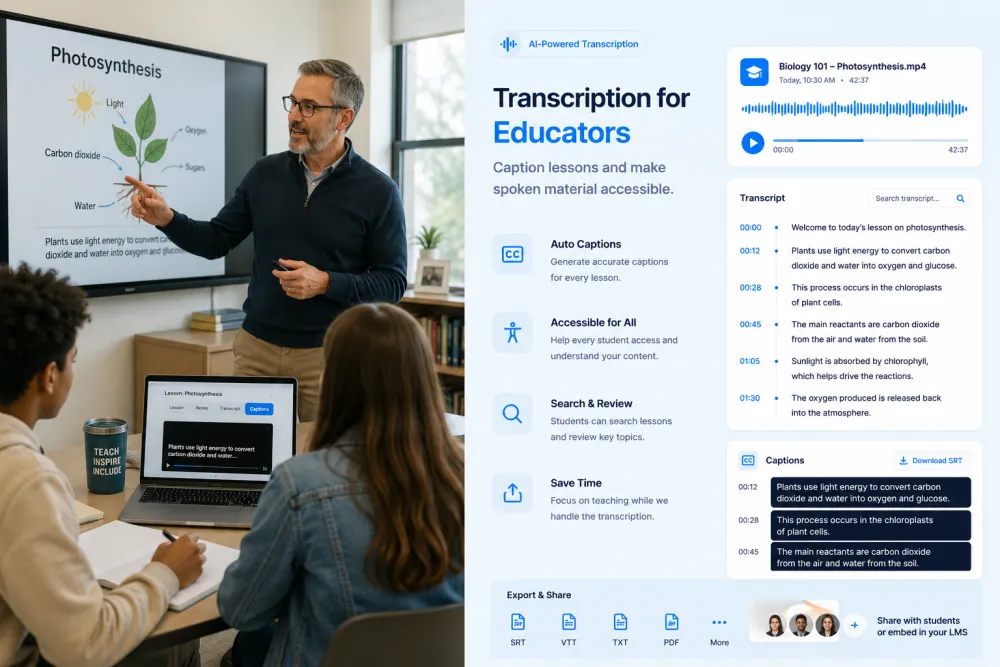
| Captions | SRT and VTT files on paid plans, exported for you to correct and upload yourself |
| Review | Highlights in colour with a comment attached, for terms and passages to fix or re-teach |
| AI output | Summary, key quotes, action points, decisions, risks, deadlines |
| LMS boundary | No Canvas, Moodle, Blackboard, or Panopto connector; nothing posts to a course page |
| Distribution | Copy the text into any app, downloads, revocable read-only links |
| Account | Transcription works without an account; AI passes, annotation, and captions need an account |
Search Everything You Have Taught
Search one lecture for the term you are looking for — elasticity, mitosis, standard deviation, the reading you assigned — and click the line to hear how you explained it. Across your account, one search shows which sessions covered a topic at all, which is the question that arrives when a student asks where something was introduced or when you rebuild a module the following year.


Review and Correct Before Students See It
Automatic transcription is at its weakest exactly where teaching is most precise: technical vocabulary, formulas read aloud, names, and numbers. Highlight the passage, attach a comment about what the term should be, and fix it before the file leaves your hands. The annotation stays with the recording, so a correction you made once is visible the next time the module runs.
Summaries You Can Hand to a Class
A fixed catalogue of one-click passes turns a session into something distributable: a summary of what was covered, plus key quotes, action points, decisions, risks, and deadlines drawn from the same transcript. Every extracted line traces back to its timestamp, so a student who wants the full explanation can jump straight to it in the recording.

What a Teaching Artifact Looks Like
An illustrative undergraduate statistics lecture: the transcript excerpt, the corrections the lecturer flagged, and the AI pass generated from the full session.
Illustrative example, not a real class. The AI summarizes what was said rather than filling a fixed template, and the comment and the caption check are written by the educator — the product does not decide which passage matters or when a caption is good enough to publish.
What the Transcript and Passes Give You
Depending on the session, the record and the AI passes can help you locate:
Teaching Recordings Educators Bring
Anything recorded with speech in it transcribes the same way; these are the sessions instructors upload most often.
The hour-long session recorded by the room system or a lecture-capture tool, where one voice carries most of the content and distance from the microphone sets the accuracy.
Small-group teaching with a lot of turn-taking. Speaker labels make it readable afterwards, and overlapping speech is where they get least reliable.
An outside speaker in your slot. Worth agreeing in advance who holds the rights to the recording and whether the transcript can be distributed to students.
Compliance, onboarding, and certification sessions that are delivered repeatedly and need a written record of what was covered each time.
Hands-on teaching with movement, equipment noise, and instructions given away from the microphone — the hardest teaching format to transcribe cleanly.
Remote delivery through a conferencing tool. These transcribe best of all, because each speaker is close to their own microphone.
Recorded explainers, screencasts, and course video where the transcript stays linked to the video timeline and doubles as the caption source.
Curriculum planning, exam boards, and staff meetings, where decisions and deadlines are agreed out loud and later disputed.
Where Teaching Recordings Come From
Lecture-capture systems
Panopto, Echo360, and Kaltura record the room and let you download the file. Download the MP4 or the audio and upload it here — these are export sources, not connectors.
Zoom, Teams, and Google Meet
Upload the recording your conferencing tool produces. Online seminars and webinars recorded this way give the cleanest audio you are likely to get.
Your LMS
Canvas, Moodle, and Blackboard are places you download a recording from. There is no integration in either direction, and nothing you produce here appears on a course page by itself.
Phones, cameras, and room recorders
A camera at the back of a hall or a phone on the lectern both work. Placement decides the result far more than the device does.
TranscribeThis transcribes recordings you upload or record in the browser, and on paid plans its bot can join a Zoom, Meet, or Teams class you send it to. It does not transcribe live, and it does not publish anything back to a course page.
The Educator Workflow
Each step is something an instructor already does; the transcript is what turns a recording into material you can hand out.
- Record the session
- Upload
- Transcript
- Check speakers
- Correct terms
- Export captions
- AI summary
- Distribute to students
Posting the Recording Alone vs. a Corrected Transcript
| Recording posted on its own | TranscribeThis |
|---|---|
| A student who missed one definition replays the whole hour | They search the word and jump to the minute it was defined |
| Captions typed by hand, or none at all | An SRT or VTT file you correct and upload yourself |
| No written record of what a session actually covered | A summary you can post beside the recording |
| "Which lecture did I introduce that in?" answered from memory | Answered by searching every recording in your account |
| A guest lecture quoted from your notes | A reviewable quote linked back to the recording |
What This Page Covers, and What It Does Not
This is the production side of teaching: taking a session you recorded and turning it into a transcript, a caption file, and a summary that you review and distribute. Transcription creates the record; correcting it is your work; publishing it is your work too.
On accessibility, plainly, because it matters more than anything else on this page: a transcript or a caption file supports access, but it does not make a course legally accessible, and TranscribeThis certifies nothing. Automatic captions typically need human correction before they meet an institution's standard — terminology, names, punctuation, and speaker attribution are exactly what an automatic pass gets wrong. Your institution has an accessibility process and an accommodation service, and they, not a transcription tool, decide whether a course meets its obligations. Treat what you get here as a first draft for that process.
Educators and students use lecture recordings for different jobs. An educator prepares, reviews, captions, archives, and distributes material to a class. A student receives it and studies from it — revision, exam preparation, and study notes are a different job with a different page, so if you are studying rather than teaching, read the students page instead. If the question is simply how to transcribe a lecture file, the lecture transcription page is the shorter answer.
Accuracy in a Teaching Setting
Accuracy is not a fixed number. These are the conditions that move it in a classroom, and the checks worth doing before a file reaches students:
Consent, Student Privacy, and Rights
A teaching recording usually contains identifiable students as well as you, and often material you do not own. This section is guidance, not legal advice.
Tell the room a session is being recorded and follow your institution's policy on recording teaching. Some departments require notice in advance, an opt-out, or a specific form of announcement.
Questions and discussion from the floor become part of the transcript, attached to a student's voice and sometimes their name. Consider removing student contributions before distributing a transcript widely, and check what your institution requires.
A guest lecturer, an invited practitioner, or third-party material played in class may not be yours to transcribe, distribute, or publish. Agree the terms before the session rather than after the transcript exists.
Files travel over TLS and are stored encrypted. Guest uploads that are not saved to an account are deleted automatically; in an account, retention is under your control. Your recordings are not training data.
Formats, Languages, and Limits
Try It With a Real Lecture
Upload a session and review the transcript, speaker labels, and word-level timestamps before choosing a plan. No signup for files up to 50 MB.
Related Pages
Frequently Asked Questions
Can TranscribeThis transcribe a recorded lecture?
Yes. Upload the recording and you get a speaker-labeled transcript with word-level timestamps, usually in a couple of minutes for an hour of audio. Transcription works without an account for files up to 50 MB, and 30+ audio and video formats are accepted.
Does it publish directly to Canvas, Moodle, or Blackboard?
No. There is no LMS integration of any kind — not Canvas, not Moodle, not Blackboard, not Panopto. Those are places you download a recording from. Everything produced here is a file you download or share yourself, and nothing appears on a course page unless you put it there.
Does an AI transcript guarantee accessibility compliance?
No. A transcript or caption file supports access, but it does not make a course legally accessible, and TranscribeThis certifies nothing. Automatic captions usually need human correction before they meet an institution's standard, and your institution's accessibility process and accommodation service are what determine compliance. Use the output as a first draft for that process.
Can I get caption or subtitle files for my course videos?
Yes. Export SRT or VTT on a paid plan and upload the file to wherever your video lives. Correct the terminology first — technical terms and names are where automatic captions fail, and in teaching those are the words that carry the content.
Can it label the lecturer and the students separately?
Yes. Speaker labels separate voices automatically, which is what makes a seminar readable as a discussion. Check them in small-group teaching, where overlapping speech and similar voices reduce accuracy, and expect students far from the microphone to come through poorly or not at all.
Can I search across a whole semester of recordings?
Yes. One search finds which recordings in your account contain a term, and inside a lecture you can search and click any line to play that moment. It matches words rather than meaning, so a synonym you did not type will not appear in the results.
Will it write my lesson plans or course materials?
No. The AI passes are a fixed catalogue — summary, key quotes, action points, decisions, risks, deadlines — generated from what was said in the recording. There are no custom templates, and nothing writes a lesson plan, a syllabus, or an assessment for you.
Can it record or join my class automatically?
Only if you send it, and never live. On paid plans (Standard, Premium) the TranscribeThis bot can join a Zoom, Google Meet, or Microsoft Teams class you send it to and record it; the host may need to admit it, and the transcript arrives after the session. It does not join anything on its own, and there is no live transcription. For in-room teaching, record in the browser with your microphone (free account), or record with your room system, lecture-capture tool, or phone and upload the file.
How accurate is it in a large lecture hall?
It depends mostly on the microphone. A lapel or lectern mic close to the speaker gives a clean transcript; a ceiling or camera mic across a hall gives a noticeably worse one, and audience questions from the back are the first thing to be lost. Technical vocabulary and formulas read aloud need checking regardless of the room.
What should I do about students who are audible in the recording?
Treat their contributions as personal data. Announce that the session is recorded, follow your institution's policy, and consider removing student questions and discussion before distributing a transcript to a whole cohort or publishing it. This is guidance, not legal advice.
Can I transcribe a guest lecture and share it with my class?
Technically yes, but the rights question comes first. A guest speaker's talk and any third-party material played in class may not be yours to distribute. Agree recording and sharing terms with the speaker before the session, not after you have the transcript.
Can students use this to make study notes?
They can, but that is a different job and it has its own page. This page is about producing and distributing material: transcripts, captions, summaries for a cohort. Revision, exam preparation, and study notes are covered on the students page.
Details on encryption, retention, and how we handle your files: Privacy Policy · Terms of Service
Reviewed by the TranscribeThis Speech Recognition Team.
Last updated: July 2026