


At a glance
| Goal | Get podcast quotes into Readwise as highlights you can review |
|---|---|
| TranscribeThis role | Produces the transcript; it has no direct Readwise integration |
| Real integrations | Notion, Slack, Google Drive, Google Docs (not Readwise, Castro, or Apple Podcasts) |
| Readwise role | You import the text using Readwise’s own current import options |
| Free (no account) | First 5 minutes transcribed, files up to 50 MB, preview export |
| What to save | Selected highlights and quotes — not the full transcript |
Quick workflow
Sending podcast quotes to Readwise is a three-part workflow that lives across two tools: transcribe the episode, verify the exact passage against the audio, then move the text into Readwise with one of Readwise’s supported import methods. TranscribeThis handles the first two parts; Readwise handles the import. There is no direct pipe between them, so plan to copy or export the text yourself.
- Create or obtain a transcript of the episode.
- Verify the quote and its timestamp against the recording.
- Export or copy the passages you want, then import them into Readwise.
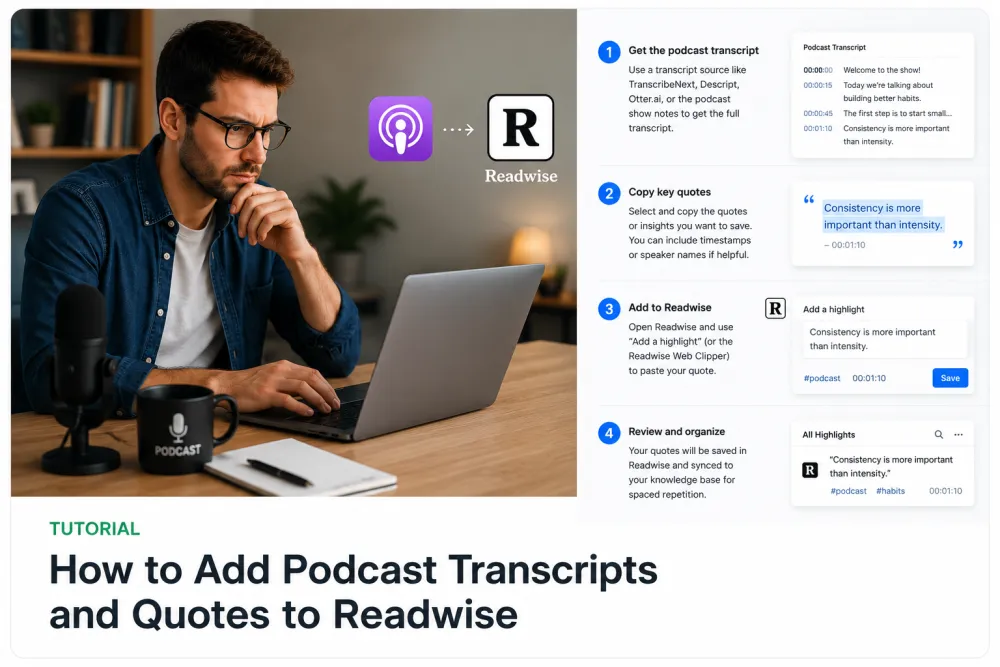
Step 1 — Create or obtain the transcript
Start with a transcript you have the right to make. Upload the episode audio to the tool at the top of this page, or paste a YouTube link where the podcast is published on YouTube and captions are available. Without an account you can transcribe the first 5 minutes of a file up to 50 MB, which is enough to pull a specific quote.
- Upload the episode file (MP3, M4A, WAV and more) for word-level timestamps.
- Or paste a YouTube link where the show is hosted — that path is caption-based and segment-level, not word-level.
- If the show already publishes an official transcript, use that as your source and skip straight to verifying the quote.
Step 2 — Verify the quote and timestamp
Verify every quote against the audio before it leaves the transcript. AI transcription is a fast first pass, and the errors that matter for a saved highlight — a mis-heard name, a wrong number, a flipped negative — are exactly the ones that survive a quick skim. For uploaded audio, each word carries a timestamp linked to the recording, so you can click into the passage and confirm the wording by ear.
- Play back the sentence you plan to save and confirm it word for word.
- Note the timestamp so you can cite where the quote came from.
- Fix speaker attribution if two people talk over each other — overlap is the hardest case for any model.
Step 3 — Export or copy the text
Once a passage is verified, get it out of TranscribeThis in a form Readwise can accept. For a handful of quotes, select and copy the text directly. For a longer excerpt or a whole verified transcript, export a document and hand that file to Readwise’s importer.
| You want to save | Get it out as |
|---|---|
| A few quotes | Select and copy the text (plain text) |
| A longer excerpt | Copy the passage, or export TXT/DOCX/PDF |
| A full verified transcript | Export DOCX or PDF as a document |
| Timed reference | Keep the timestamp alongside the quote |
Current Readwise import options
Readwise imports text through its own tools, not through a TranscribeThis connector — so check Readwise’s current documentation before you rely on any single method. As of July 2026, Readwise and its companion app Reader generally accept text in a few ways: pasting or saving a document, sending an article or file to Reader, and manually adding a highlight. Which of these is available to you depends on your Readwise plan and can change, so treat the list below as a starting point rather than a fixed contract.
- Manually add a highlight in Readwise and paste the verified quote plus its source.
- Save the excerpt as a document (e.g. a text or DOCX file) and import it through Readwise’s document/file path.
- Send a longer transcript into Readwise Reader as a document to highlight there, then sync those highlights.
Castro & Apple Podcasts limitations
Castro and Apple Podcasts do not give you a clean, exportable transcript you can push into Readwise. Apple Podcasts shows an in-app transcript for many shows, but it is designed for reading inside the app, not for bulk export, and its availability and copy behavior vary by episode and region. Castro is a listening app without a general transcript-export feature. In both cases the reliable route is the same as any other podcast: get the episode audio (or the show’s YouTube upload) and transcribe that, rather than trying to scrape text out of the listening app.
Create highlights instead of importing everything
Save the highlights that matter, not the entire transcript. Readwise is built around spaced review of a small number of meaningful passages; dumping a full hour-long transcript in buries the two or three ideas you actually wanted to remember and makes review noisy. Pull the specific quotes, add a line of your own context, and keep the source and timestamp so you can return to the original.
- Import 2–5 verified quotes per episode, not the whole file.
- Add a note in your own words next to each highlight.
- Keep the show name, episode, and timestamp as the source.
Copyright and private use
Transcribing a podcast for your own notes and saving short quotes for personal review is very different from republishing an episode’s transcript. Podcasts are copyrighted works; making a personal transcript and keeping a few attributed highlights in your own Readwise account is generally a private, personal-use activity, but posting a full transcript publicly or distributing it can infringe the creator’s rights. When you save a highlight, keep the attribution — show, host, episode, and timestamp — and treat longer excerpts as quotations under fair use with credit, not as content you own.
Frequently Asked Questions
How do I get a podcast transcript into Readwise?
Transcribe the episode (upload the audio here or use the show’s YouTube link), verify the quote against the audio, then copy or export the text and import it with one of Readwise’s own current import options. There is no direct TranscribeThis-to-Readwise integration.
Is there a direct TranscribeThis to Readwise integration?
No. TranscribeThis has no Readwise integration, and no direct integrations with other apps. You move the text into Readwise yourself using Readwise’s supported import methods.
Is there an Apple Podcasts transcript generator I can export from?
Apple Podcasts shows in-app transcripts for many shows, but they are meant for reading inside the app, not for clean bulk export, and behavior varies by episode. To save quotes to Readwise, transcribe the episode audio (or its YouTube upload) and import that text instead.
Can I save a podcast transcript to Readwise from Castro?
Castro is a listening app without a general transcript-export feature, so there is nothing to push directly into Readwise. Get the episode audio you have the right to use, transcribe it, verify the quote, and import the text into Readwise yourself.
Should I import the whole transcript or just quotes?
Import just the quotes. Readwise works best with a small number of meaningful highlights you review over time; a full transcript buries the ideas you wanted to remember. Save 2–5 verified passages per episode with your own note and the source.
What import methods does Readwise support?
Readwise generally accepts manually added highlights, saved documents, and content sent to Readwise Reader, but the exact options depend on your plan and change over time. Check Readwise’s own documentation for the current, supported steps.
Is transcribing a podcast for Readwise legal?
Making a transcript for your own notes and keeping short, attributed quotes for personal review is generally personal use. Republishing or distributing a full transcript can infringe the creator’s copyright. Keep attribution and check the show’s terms and your local law before sharing.
Can I do this on the free tier?
Yes for short clips — without an account you can transcribe the first 5 minutes of a file up to 50 MB and preview the result, which is enough to pull a specific quote. Full export is a paid feature.
Related resources
Reviewed by the TranscribeThis product team · Last updated: July 2026